Getting Started with Integration
General Overview of the Integration Process
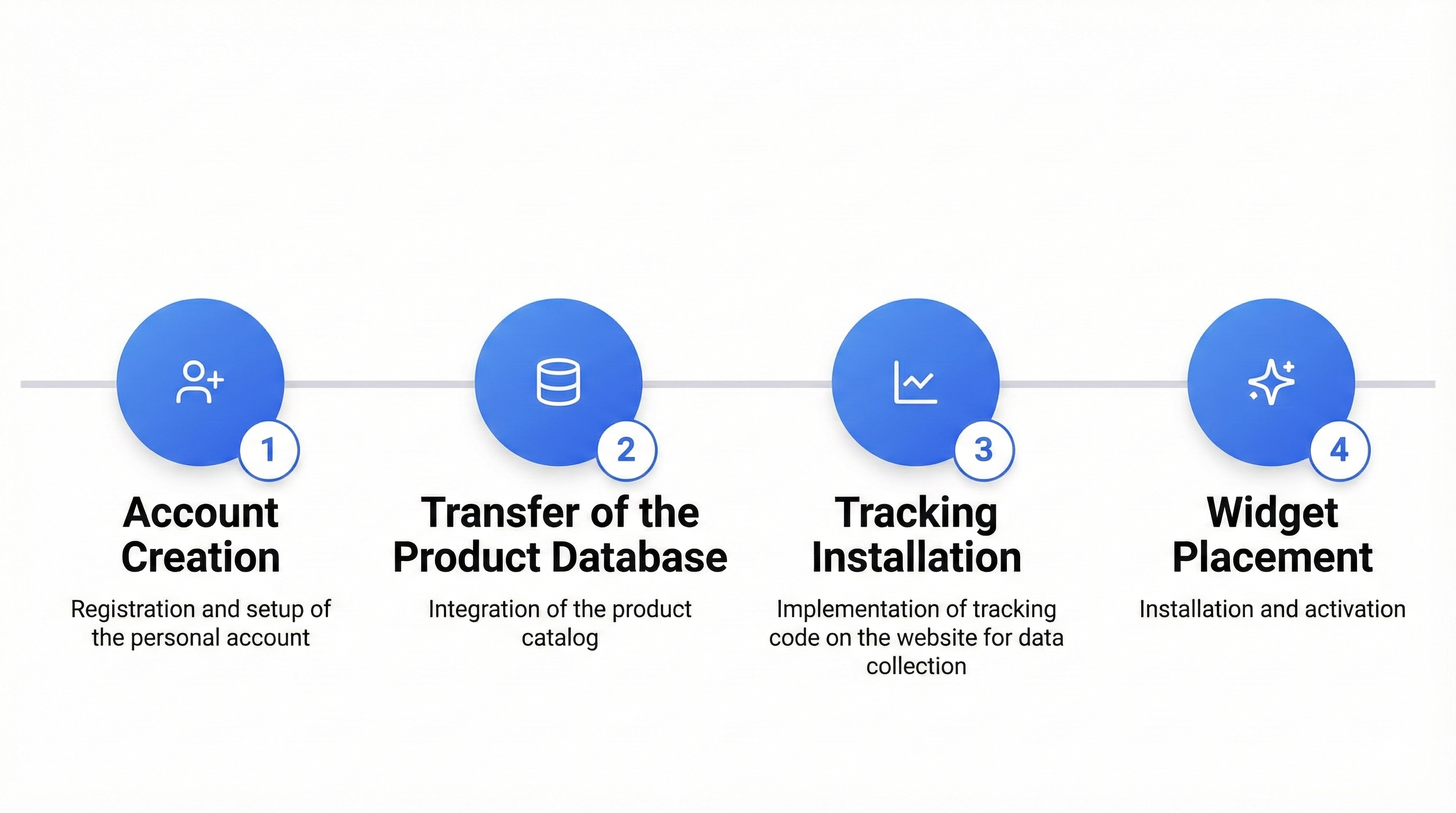
Retail Rocket integration includes several main stages:
- Registration - creating an account and getting a unique ID
- Setting up the product base transfer — transferring the product catalog
- Installing tracking — tracking user behavior
- Placing widgets — integrating widgets into the user interface
Step-by-Step Integration Process
For a successful Retail Rocket integration, you will need:
- Access to the code of your website, application, or backend of any other platform for the Retail Rocket product
- The ability to set up regular data export (product catalog) in one of the several available ways
Step 1: Account Setup and Partner Access
- Register an account on the Retail Rocket website
- Get access to your Retail Rocket personal account and account ID
- Determine the required integration type
For public self-service tariffs, the client-to-server integration type is available, using the JS SDK, as well as a method of transferring the product base via an XML file (Google Merchant Feed / YML)
For the Enterprise tariff, the server-to-server integration type is additionally available, using the REST API, as well as a method of transferring the product base via Product API
Step 2: Setting up product data transfer
Depending on the type of product base transfer you have chosen, set up its export to Retail Rocket.
Transferring the product base via an XML file
The product feed must be constantly and promptly updated when product information changes
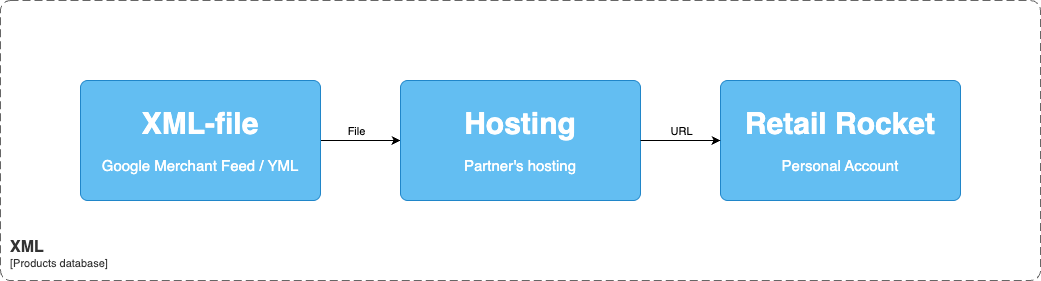
You need to prepare a product feed in the format you have chosen, corresponding to the platform's requirements, and upload it to your hosting.
Then, you need to upload the link to the file to the Retail Rocket personal account you created earlier. Our service will regularly request and download the feed from the specified URL, more details about synchronization here.
Transferring the product base via Product API (client-to-server)
This method is only available on the Enterprise tariff and for use on a website
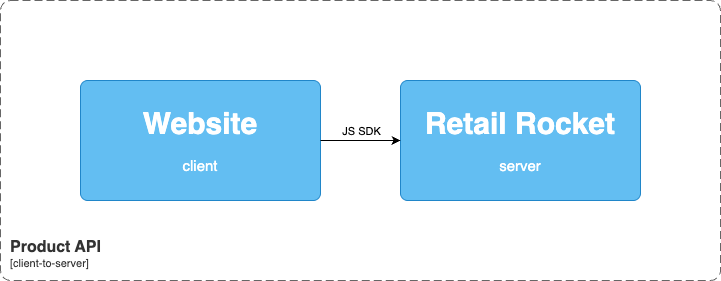
On the product card, in addition to the JS SDK user behavior tracking methods, you need to install an additional method that will transfer information to Retail Rocket when the page loads.
Documentation for the method can be found in the corresponding section.
Transferring the product base via Product API (server-to-server)
This method is only available on the Enterprise tariff
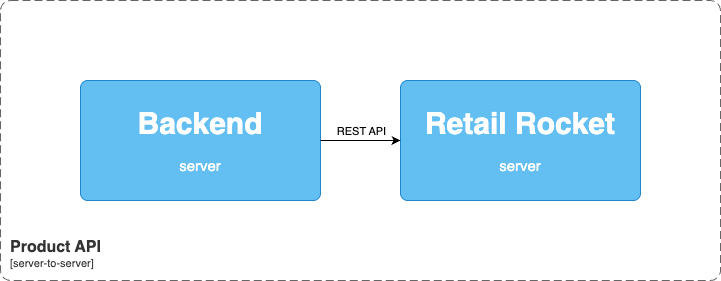
On your backend server, you need to set up the sending of product data to the corresponding method.
Documentation for the method can be found in the corresponding section.
Step 3: Installing user behavior tracking
Depending on the integration type you have chosen, place the tracking methods on the corresponding pages.
Behavior tracking with JS SDK integration (client-to-server)
This method is only available for use on a website
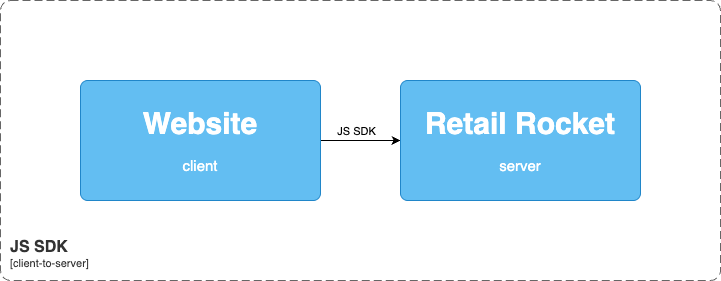
To ensure the operation of the client-to-server integration, on each page of the site in the <head> section, you need to place the main tracking code, in which you need to specify the ID of your account, obtained after the account creation stage.
You also need to set up the call of the corresponding JS SDK methods for certain user actions:
For these methods to work within the corresponding page, you need to have the following data:
- Product ID
- Category ID
- Order information (Product ID, quantity, price, transaction ID)
- User information (User ID, email address, additional parameters)
Thus, you will need to edit several page templates of your website by placing JS functions in them.
Behavior tracking with API integration (server-to-server)
This method is only available on the Enterprise tariff
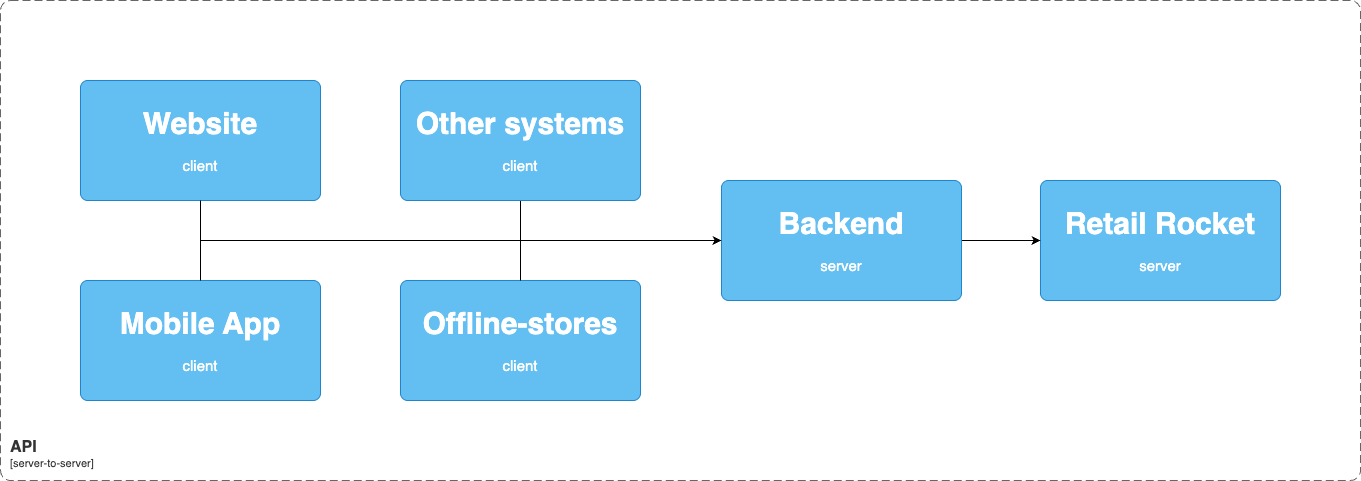
API methods cannot be called on the client side, as they contain an API key, the leakage of which can lead to security problems.
It is necessary to implement API proxying, which will accept events from the client to your backend, and the backend, in turn, will send events to Retail Rocket.
Next, you need to set up the call of the corresponding API events for certain user actions.
For these methods to work within the corresponding page, you need to have the following data.
- Product ID
- Category ID
- Order information (Product ID, quantity, price, transaction ID)
- Search query entered by the user
- User information (User ID, email address, additional parameters)
Step 4: Installing widgets
Widgets with personal recommendations
On public self-service tariffs, you can create widgets and get their code in your personal account, in the "Recommendations > Recommendation Widgets" section. Then place their HTML codes in certain places and pages of the site.
With the Enterprise tariff, request a widget implementation map from your account manager, and place the HTML codes on the specified pages and places of the site.
Additionally, on this tariff, a method of installing widgets via API is available, for this, set up recommendation requests and rendering of blocks, according to the received implementation map.
Widgets with sponsored content
The product is only available on the Enterprise tariff
Request a widget implementation map from your account manager, and place the HTML codes on the specified pages and places of the site.
Additionally, a method of installing widgets via API is available, for this, set up requests for receiving sponsored content and their rendering, according to the received implementation map.