Description
Several new features have appeared in the Retail Rocket platform personal account, namely:
Creating multiple accounts
Previously, if you had more than one online store, you had to create several personal accounts for different email addresses, which made switching between them inconvenient.
Now you can register once and create as many accounts as you need.
Connecting multiple users
Previously, all online store employees logged into the Retail Rocket personal account under one login, and it was problematic to deny access to a dismissed employee, as this could only be done by changing the password.
Now you can grant access to the personal account to an unlimited number of users, and selectively block them if necessary.
Owner role
Now the personal account has an owner - a user with maximum rights that cannot be limited. By default, the creator of the account becomes its owner.
This user is considered the main contact person for Retail Rocket. From the store's side, he determines what functionality should be connected. If necessary, this role can be transferred to another user.
Account Management
Creating a personal account
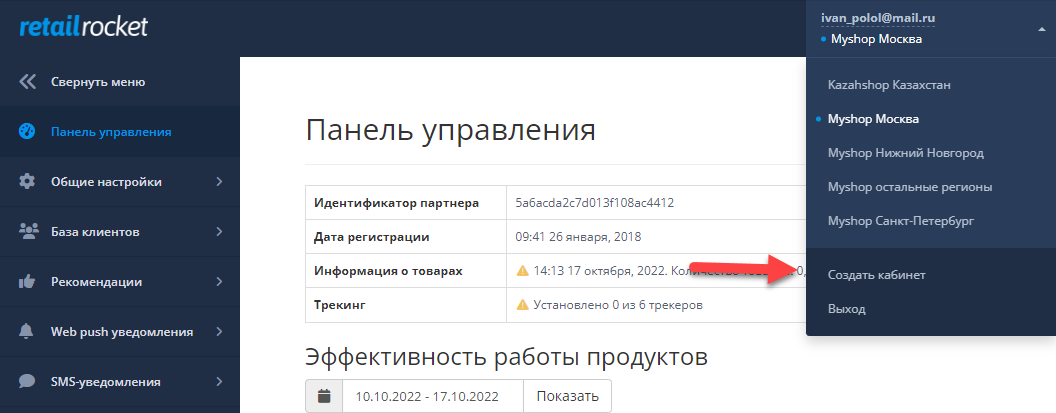
In the top menu of your current account, select “Create account” from the drop-down list.
Enter a convenient name for your account. For example, you can use the company name, brand, region, or website domain. This name will be visible to all users you invite to this account.
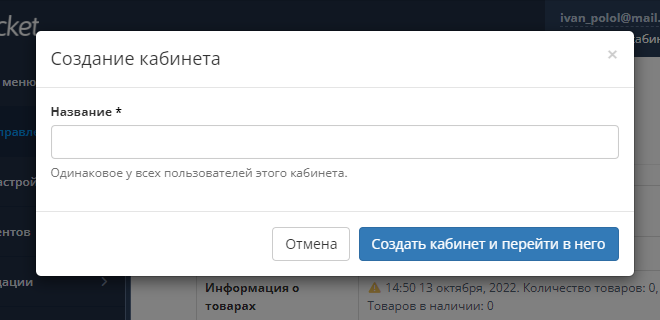
After clicking the button, the account will be created and a welcome page will open. Next, you will need to specify the website URL, a link to the YML file with products, and integrate the JS tracking codes.
You can find more information in the integration instructions.
If you need help from your IT specialist for setup, you can invite them to the account.
A 32-day trial period is included in the new account. Connecting a paid plan for small and medium-sized stores will be available after setup. To connect an Enterprise plan, contact your account manager.
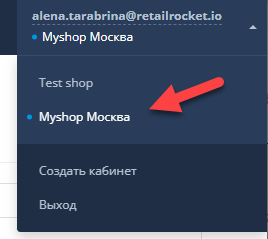
You can switch between accounts you have access to in the drop-down menu:
Changing the name of your personal account
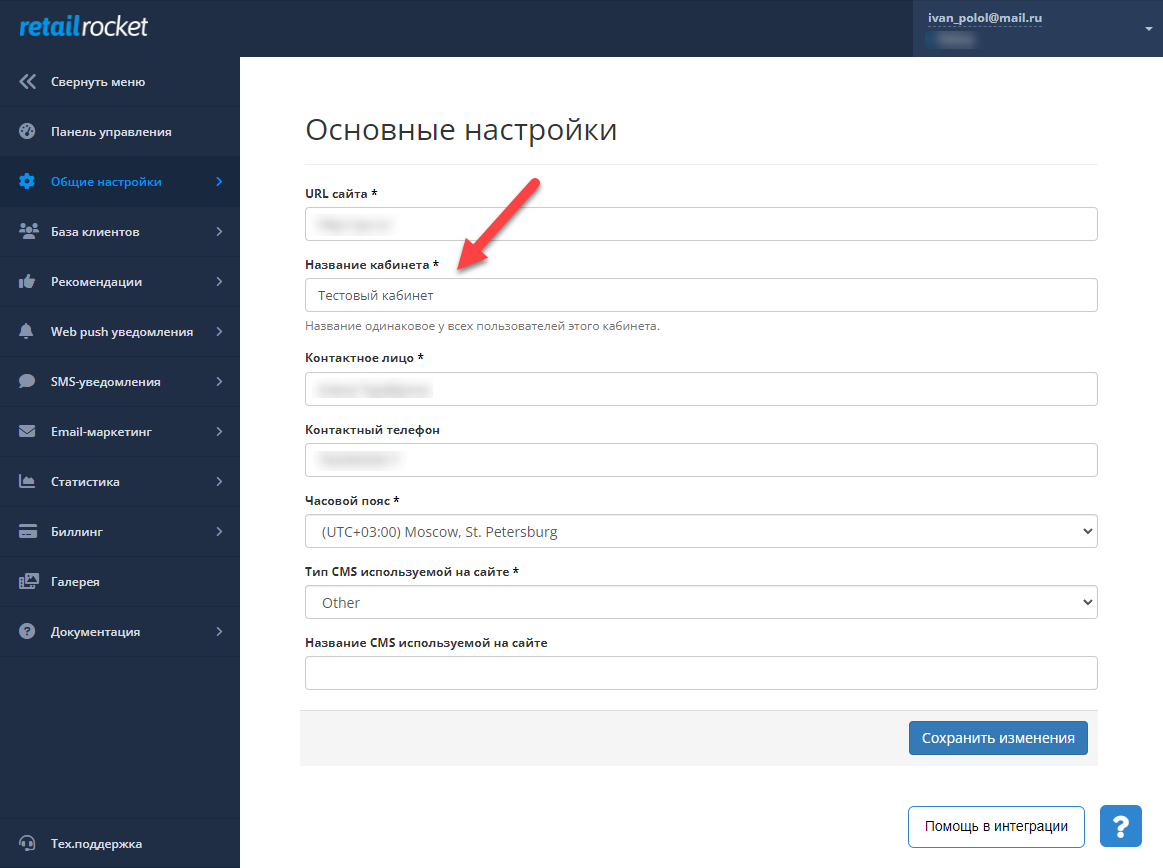
Select the "General settings" section in the side menu, and then "Main settings"
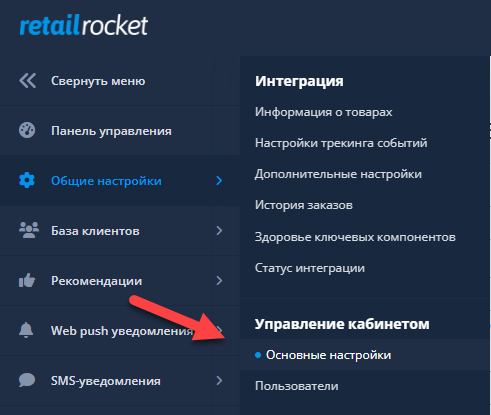
In the “Account name” field, enter the new name and save it.
Merging different accounts
If you already have several accounts, you can link them to one account for easier switching between them.
You can contact your account manager or technical support for help, but you can also try to do it yourself.
- First, choose which account you would prefer to log in with (hereinafter referred to as TA - target account). You can use the email that one of the accounts is registered to. If two-factor authentication is not yet enabled for this account, log in to the account and on the opened page, enter your phone number, confirming with a code from SMS.
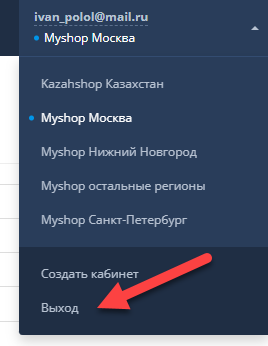
- Then log out of the account by selecting “Logout” from the drop-down list.
Now, for each subsequent account, you need to:
- Log in to the account with the same email and password you used before the platform update (hereinafter referred to as AA - account). You will need to provide a phone number, and it must be different for each account. If you do not have the required number of phone numbers, contact your account manager or support;
- Go to the “Users” page and send an invitation to the email address of the account you want to merge;
- Open the invitation email. Right-click on the “Log in to new account” button and select “Copy link address”.
- Open a browser tab in “Incognito” mode. Then paste the copied address into the address bar. Incognito mode will allow you to control which account you accept the invitation with;
- In the opened window with the registration offer, you need to log in with the TA account;
- Click the “Accept and go to account” button on the page with the invitation offer;
- Log out of the account by clicking “Logout” in the top drop-down menu;
Log in to the account with the account owner's credentials. Transfer the owner role to the target account.
After you add the TA to each personal account, you can log in under the TA and switch between accounts in the drop-down list. If you transfer the owner role, you will also be able to manage all accounts under one account.

Deleting an account and user account
Currently, it is not possible to independently delete an account and user accounts. However, if there is such a need, you can contact technical support at support@retailrocket.net.
User Management
Inviting a new user
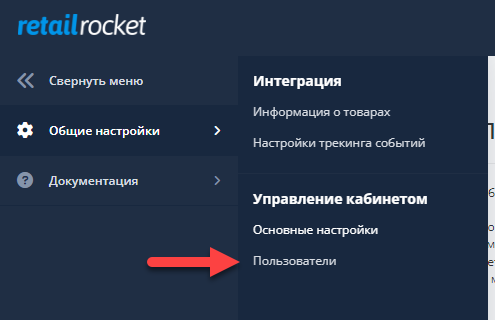
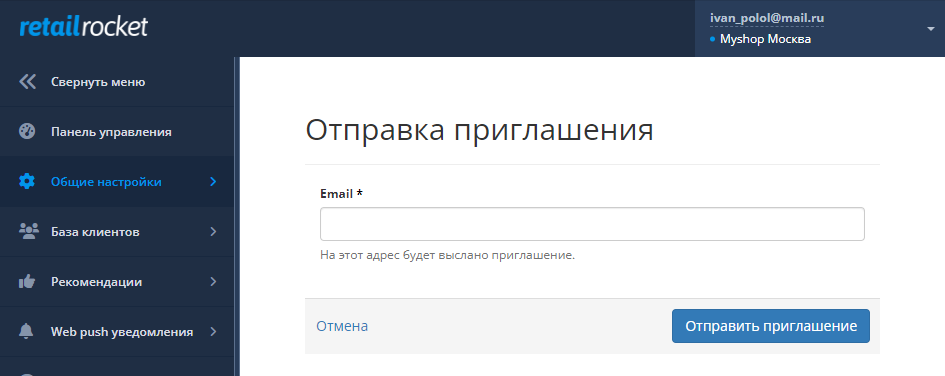
In the side menu, select the “General settings” section and then “Users”.
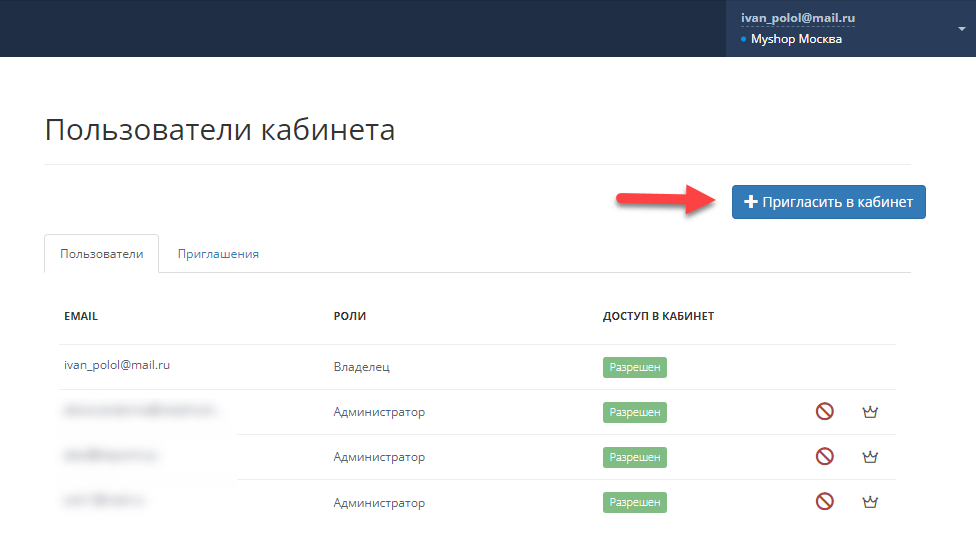
On the page with the list of account users, click the “Invite to account” button.
Enter the user's email and send the invitation.
An email of this type will be sent to the specified address:
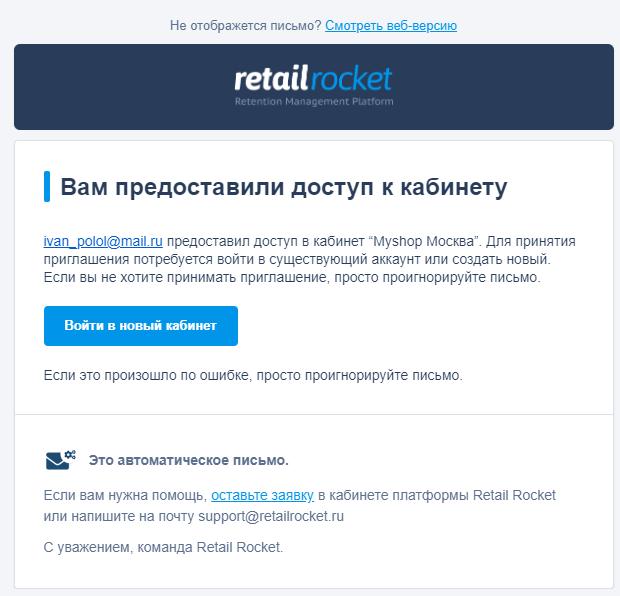
The invited user must click the “Log in to new account” button.
If the user is not authorized in the account at this moment, a page will open with an offer to register or log in to an existing account.
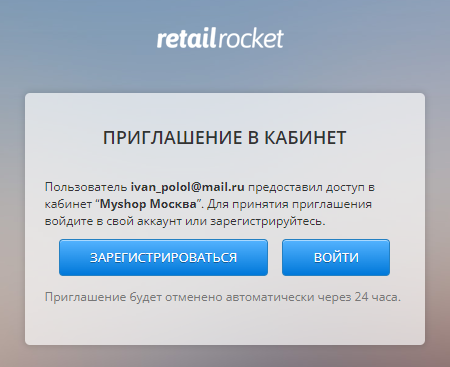
After logging in or registering, the user accepts the invitation and logs in to the account.
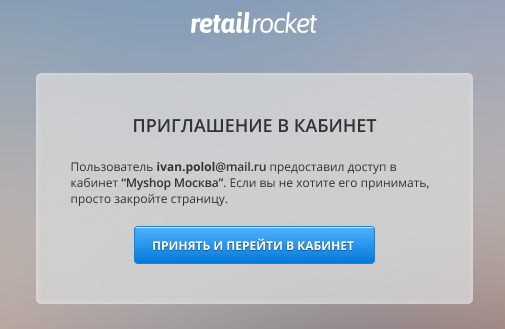
This account becomes available in the drop-down list:
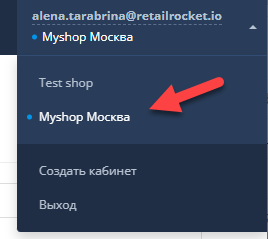
The accepted invitation is removed from the list. Currently, all invited users are connected to the account with the “Administrator” role, i.e., they have a full set of access rights similar to the account owner, with the exception of the ability to transfer the “Owner” role.
Revoking an invitation
The invitation is valid for 24 hours.
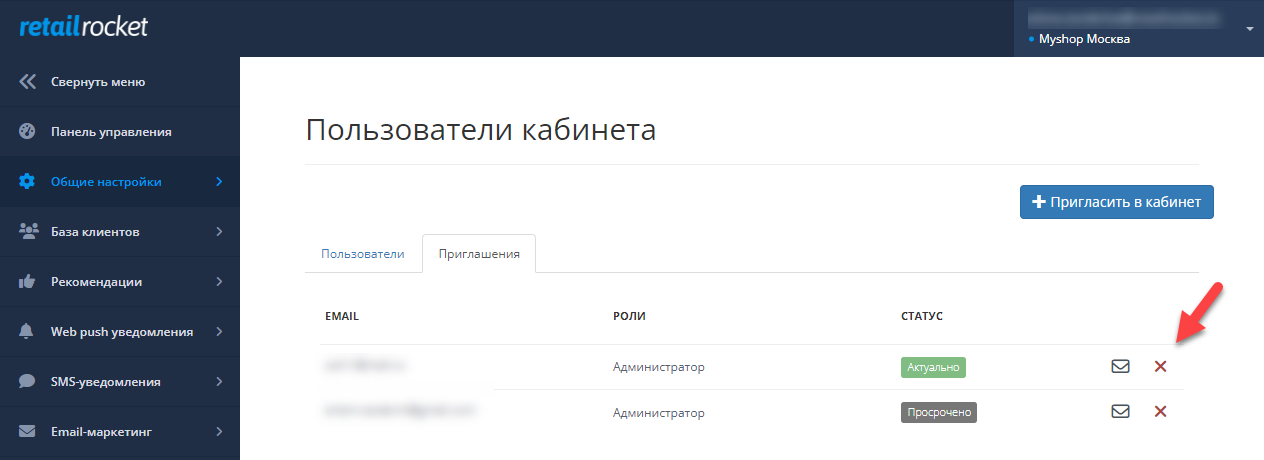
To cancel an invitation, on the user management page, click the corresponding cross icon next to the desired email address.
Resending an invitation
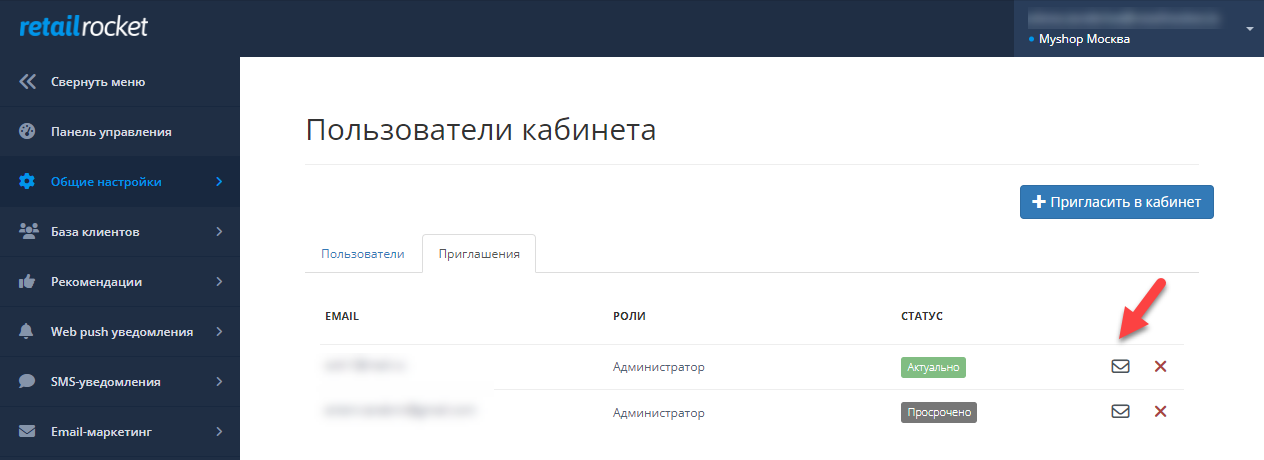
To resend an invitation, on the user management page, click the envelope icon next to the desired email address.
If the email does not arrive, check your "Spam" and "Promotions" folders.
Blocking user access
To block a user on the user management page, click the corresponding icon, and then confirm the action.
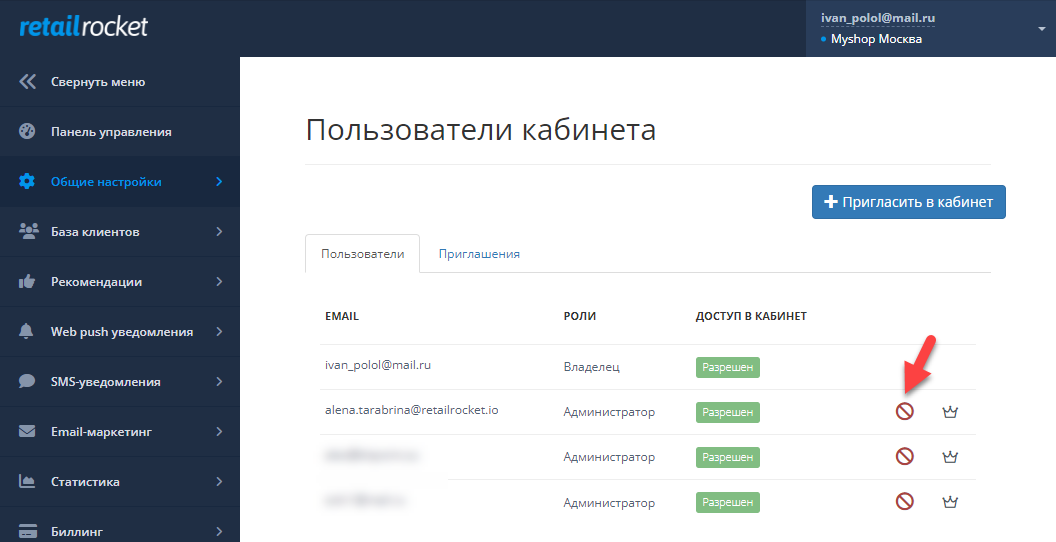
When access to an account is blocked, the account itself is not blocked, and this user can access other accounts or create their own.
Transferring owner role
To transfer the owner role of a personal account, on the user management page, click the crown icon next to the desired email and confirm the transfer of the role. You will then receive the “Administrator” role. The new owner can block your access to the account.
