WYSIWYG editor
Introduction
The design of emails is configured using a convenient WYSIWYG editor, which is easy to master without any knowledge of HTML layout. Emails look equally good on all popular email clients and devices. It includes the following functions:
- inserting images and image links;
- setting buttons;
- adding separators between blocks;
- inserting text blocks;
- placing products;
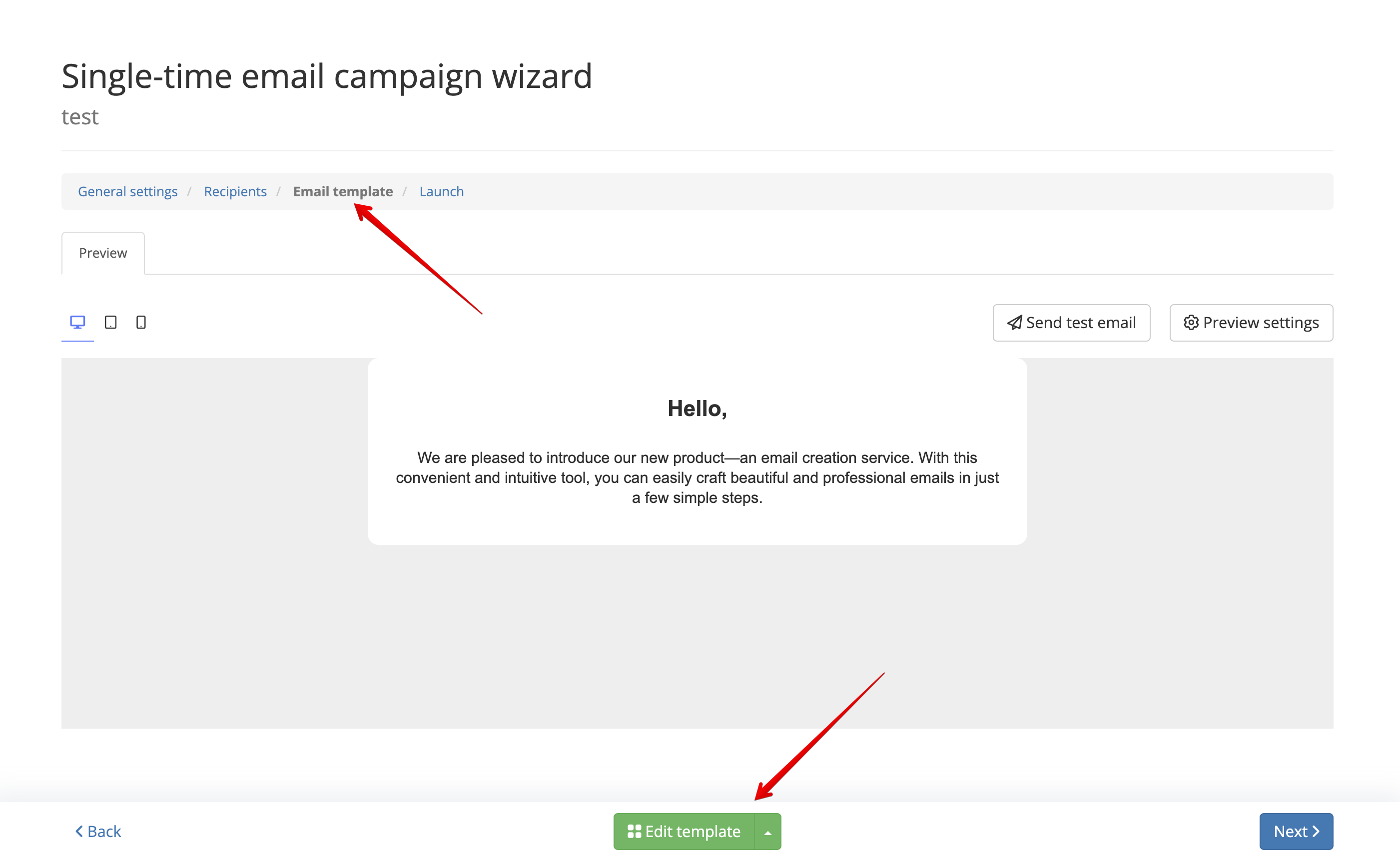
To work with the editor, go to the editing of a mass, trigger, or transactional campaign in the “Email Template” section and click the “Edit Template” button:
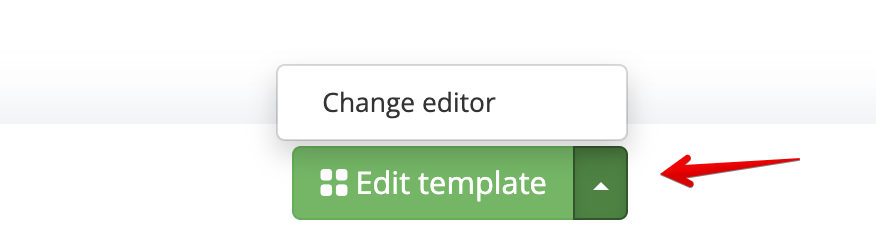
The drop-down menu button to the right of the template editing button allows you to switch the editor to HTML layout mode:
Description of working with the visual editor
Overview of the visual editor window
After clicking the template editing button, the visual editor page will open. On this page, you can create an email for various devices, set the email subject, save changes, and reset the template:
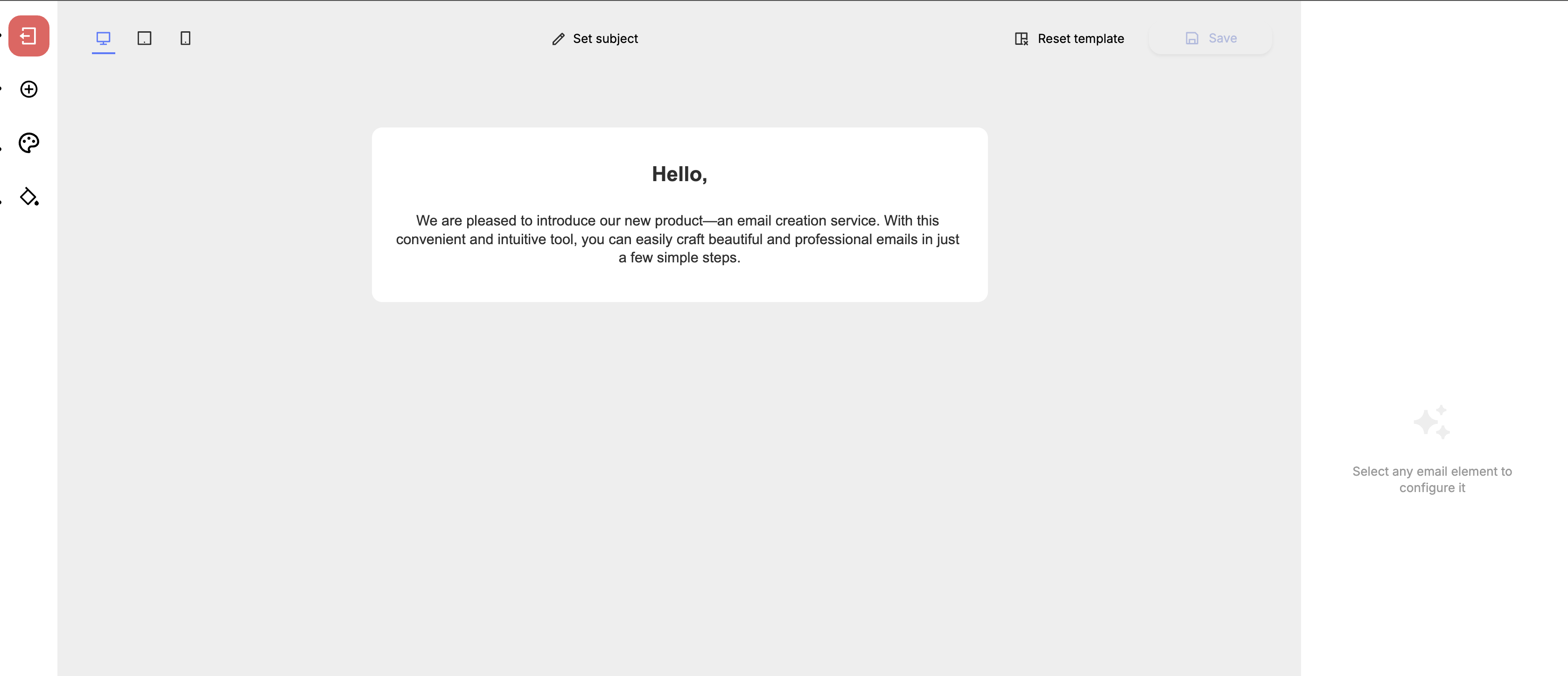
In the middle of the screen, the email builder itself is displayed.
The left panel contains the following buttons:
- Exit — clicking this button exits the visual editor back to the campaign editing page in the "Email Template" section.
- Components — clicking this button opens the email components selection panel. Components are blocks from which an email is composed, such as: email header, text blocks, image and banner blocks, recommendation blocks, and others.
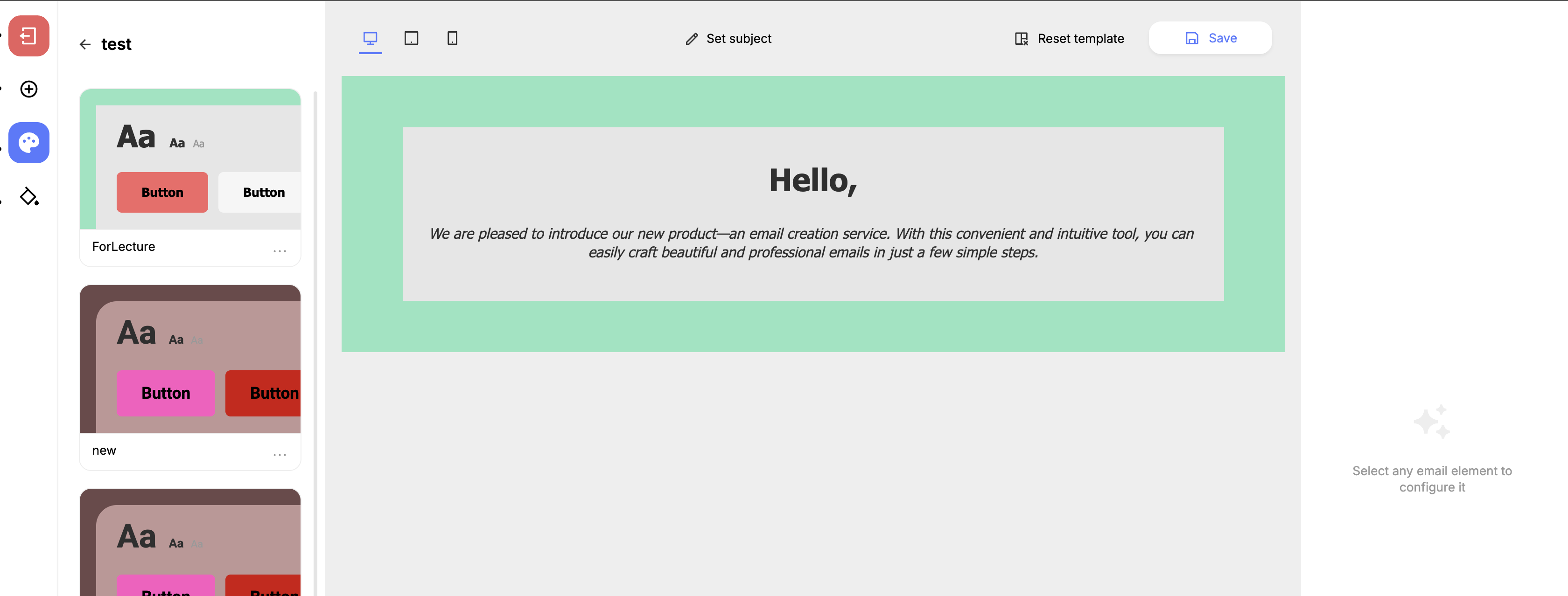
- Themes — clicking this button opens the themes selection panel. Themes change the overall appearance of the email, such as: background color, text font, font size and color, and others.
- Styles — clicking this button opens the email styles selection panel. On the styles panel, you can configure fonts, indents, rounding, and colors for both the entire email body and individual components.
The top panel contains the following buttons:
- Device selection buttons — clicking these buttons selects the type of device for which the email is currently displayed. You can choose from Desktop, Tablet, and Smartphone.
- Specify subject — clicking this button opens a window where you can specify the email subject and preheader.
- Reset template — clicking this button resets the email template to its default state.
- Save — clicking this button saves the changes made to the template.
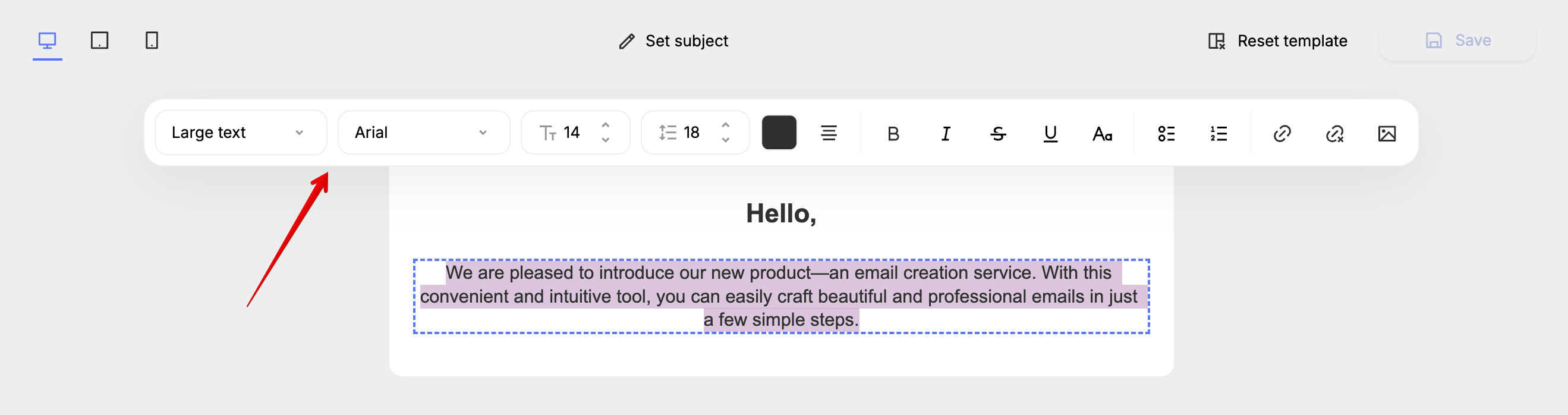
The right panel displays the properties of the selected email components:
Creating an email in the visual editor
To add new components to the email body, you first need to open the components menu in the left panel:
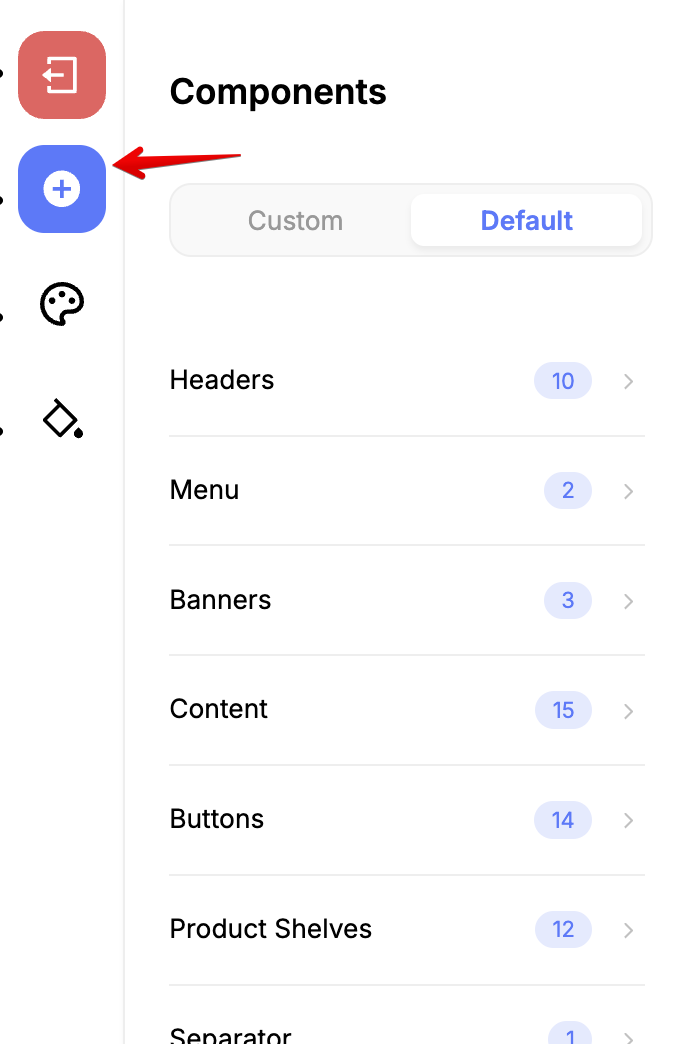
The opened menu will list component categories such as banners, headers, text blocks, buttons, and recommendation blocks.
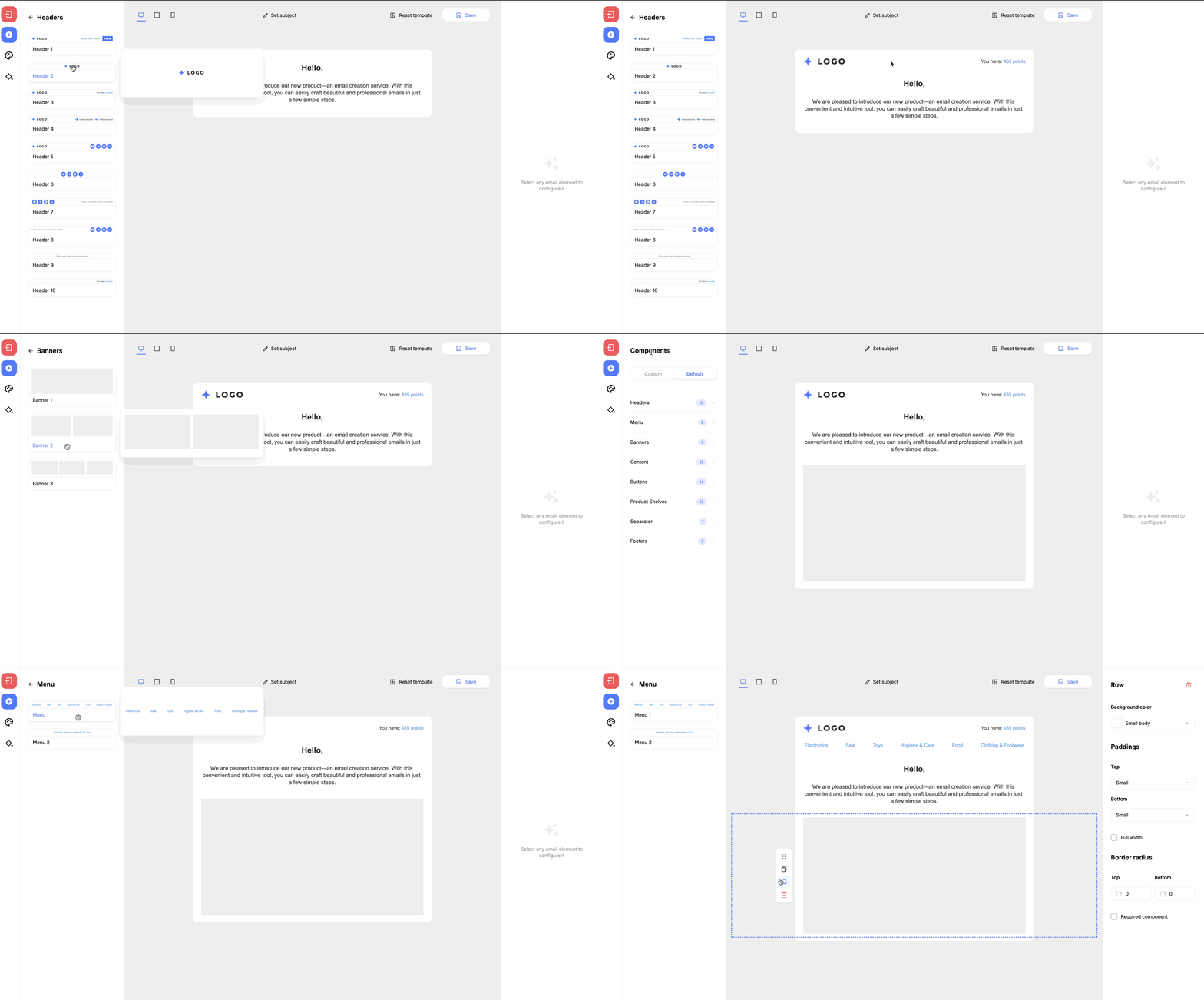
To add a component to the email body, simply hold down the left mouse button and drag it to the desired location in the email body:
To change the properties of a component, such as the text of a text block, adding a navigation link, or an image link for a banner, you need to click on the component in the email body and change the necessary property in the right panel:
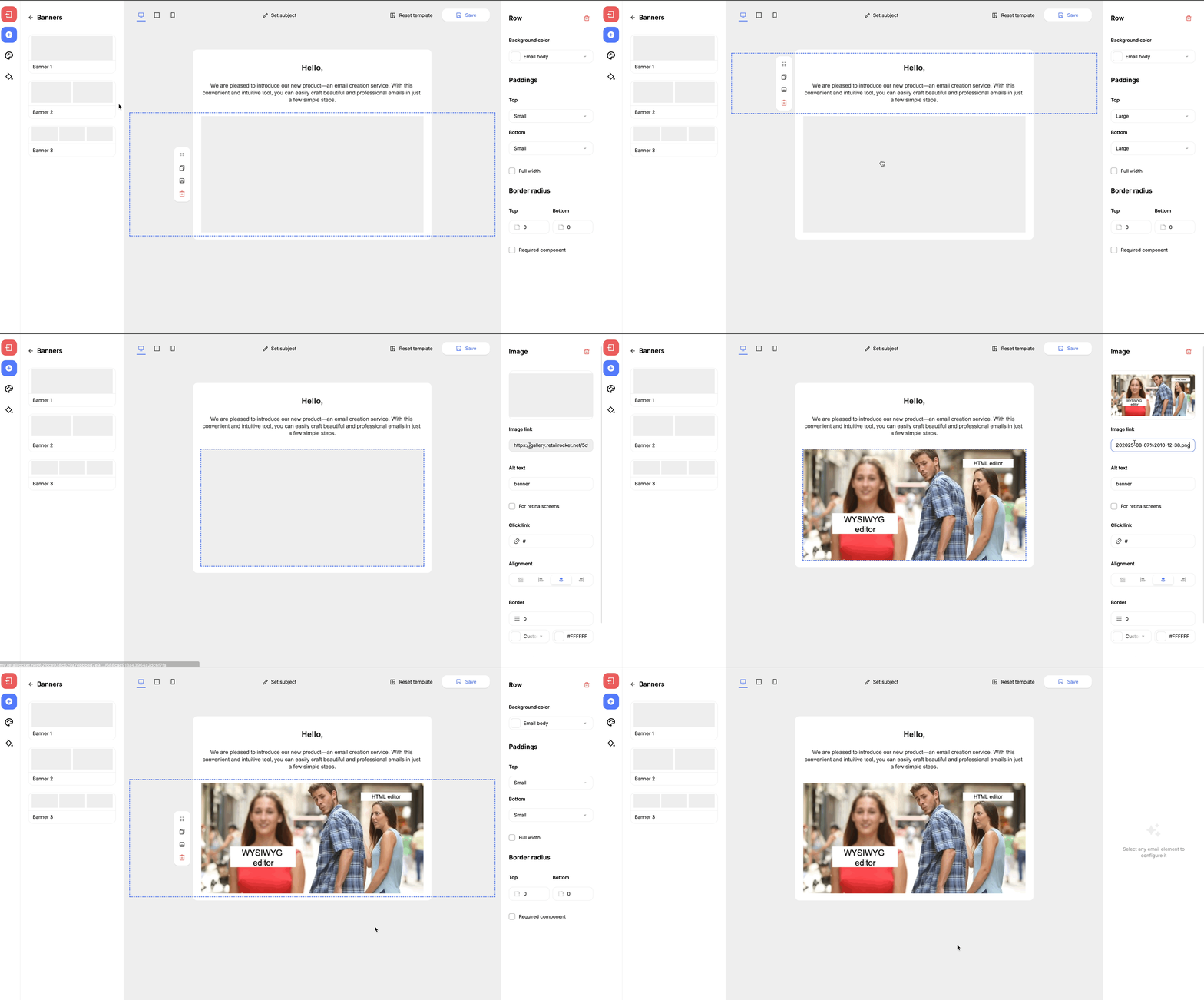
When you click on a component, a context menu appears to its left with available actions that can be performed with the component. These include:
- Move slider — moves the selected component to another place in the email layout by holding down the left mouse button and moving the cursor. The component can also be moved one level up or down with the arrows to the right of the slider;
- Duplicate — creates a copy of the component one level down;
- Save — saves the component to the components section;
- Delete — deletes the component from the email body;
Changing email component properties
When you click on an email component, a panel with the component's properties opens on the right side of the visual editor, which can be changed as needed. Let's look at the functionality of this panel.
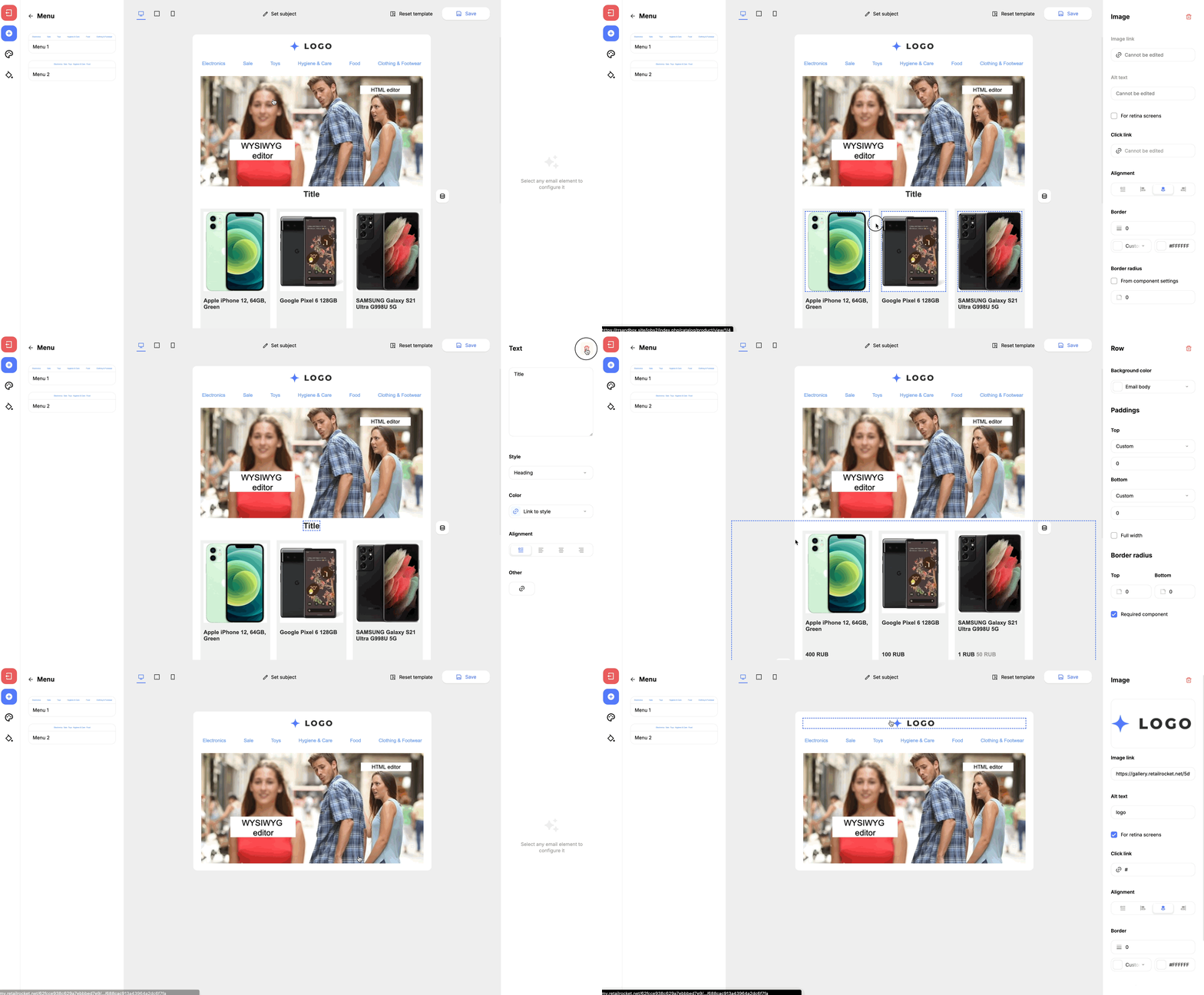
Email components can be deleted by clicking the trash can icon at the top of the component properties panel. You can delete both entire components and individual parts of components, such as block headings or text, if necessary:
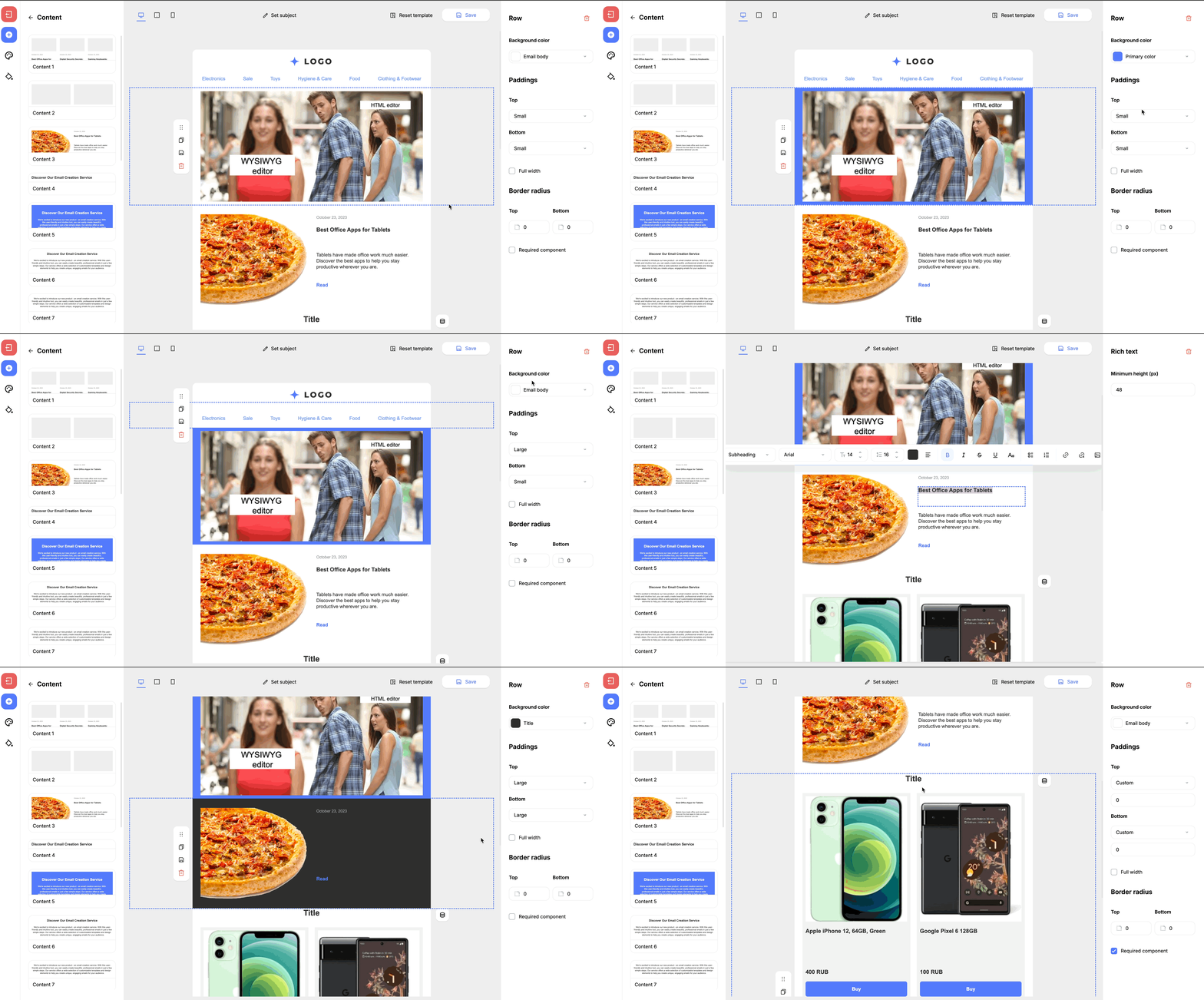
Each component can be assigned its own display style. The styles listed in the component properties panel are linked to the styles configured for the email. Also, it is possible to configure the display style for each component individually:
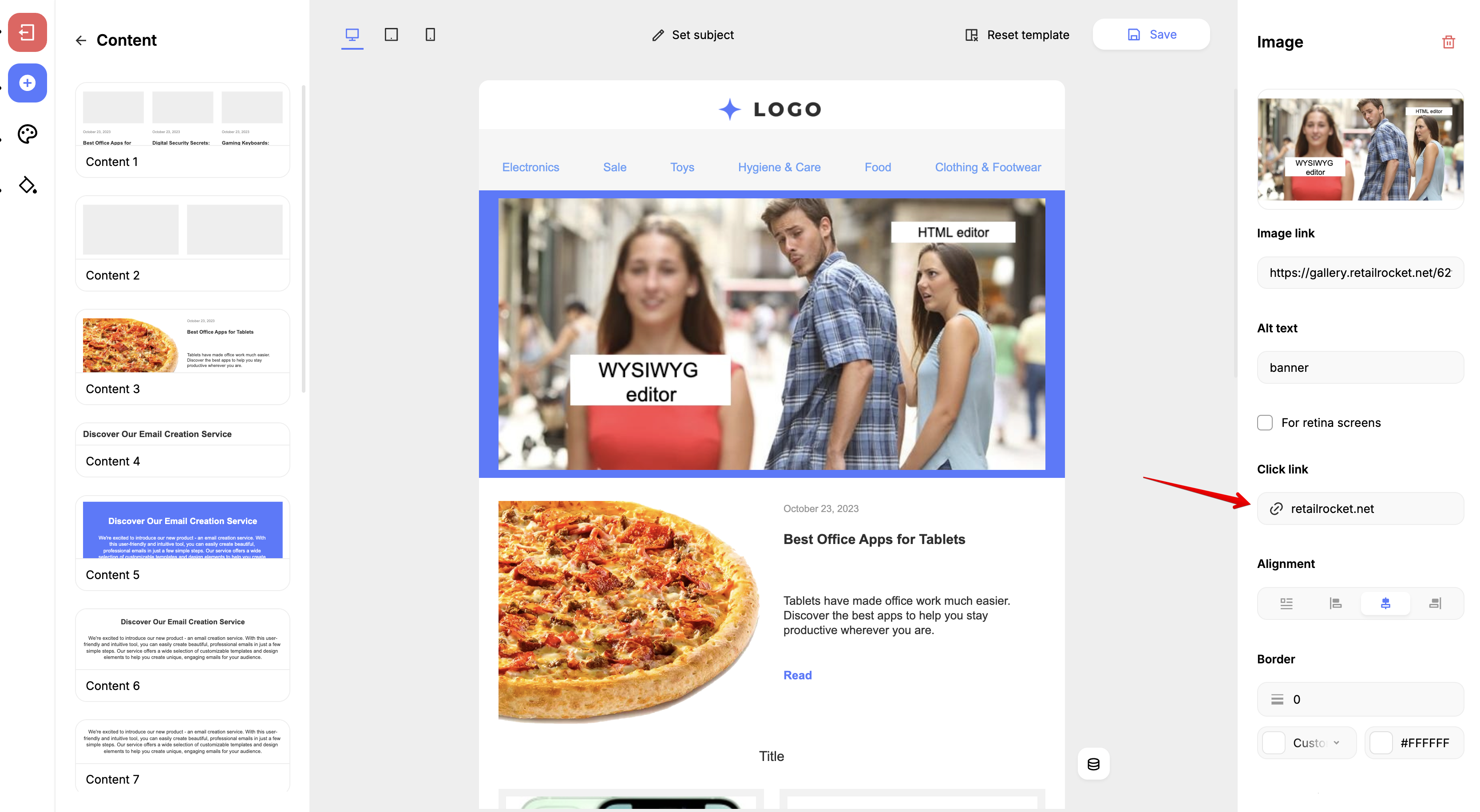
You can edit not only entire components but also individual parts of components, such as images in recommendation blocks or buttons, headings, and text:
Configuring recommendation blocks
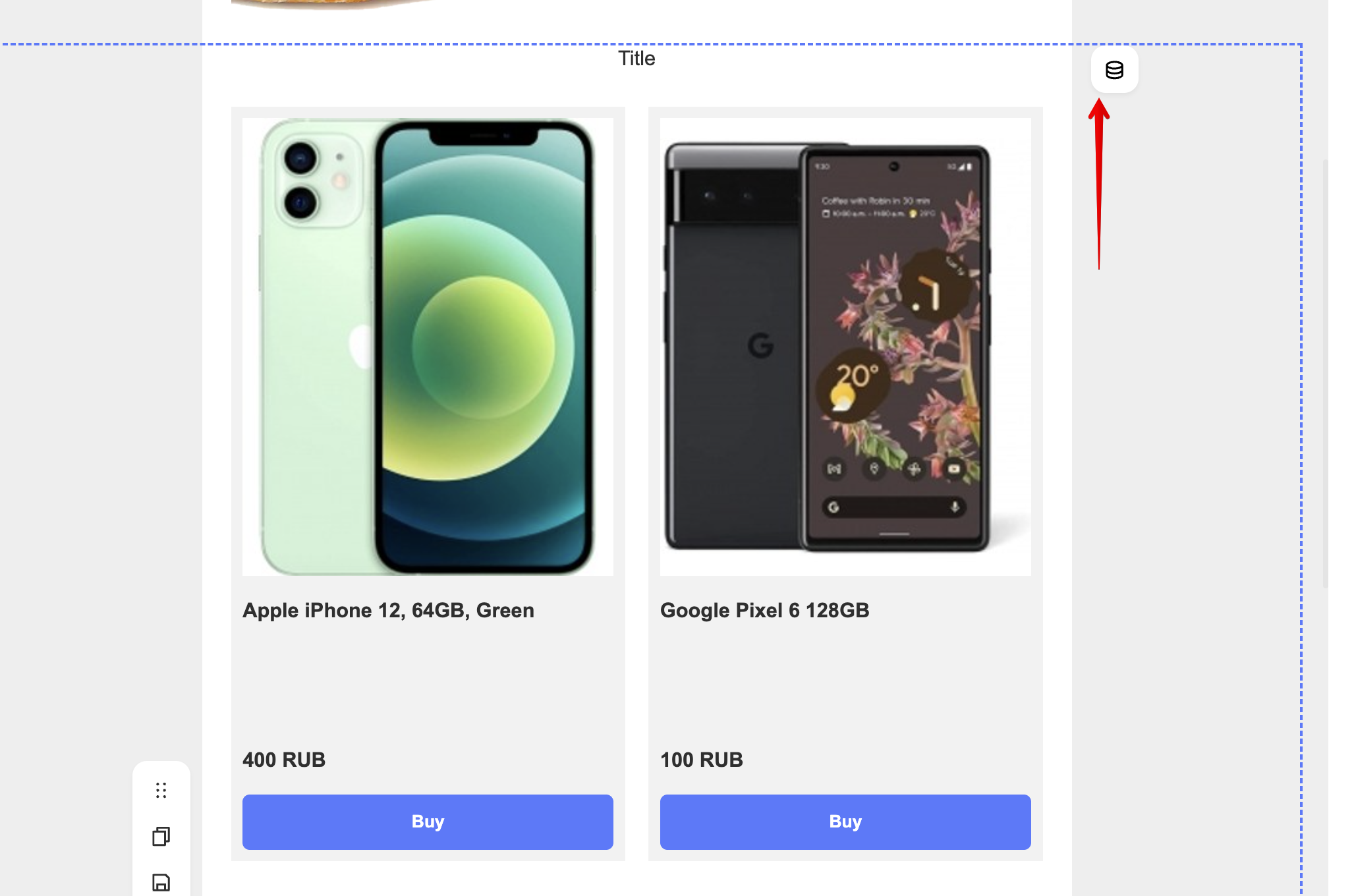
After adding a product block to the email body, a button for configuring the product block appears to the right of the block:
Clicking this button opens the product block settings window:
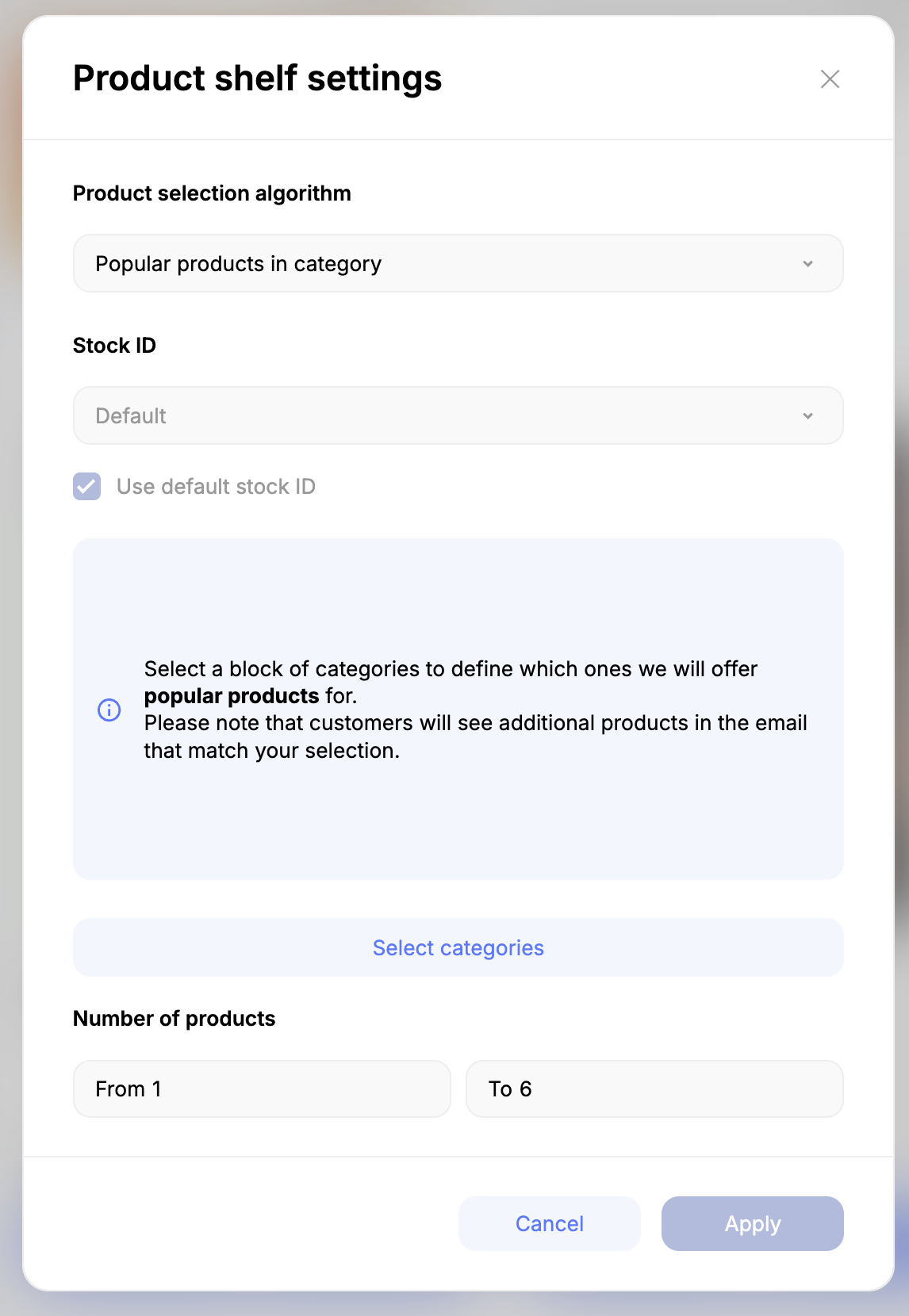
In this window, you can select the following parameters:
- Product selection algorithm — selection of the algorithm by which products will be selected in the block. - The following algorithms are available:
- Product shelf
- Popular products
- Related products to products
- Product alternatives
- Popular products from the category
- Warehouse identifier — selection of the stockId by which products will be selected for the block
- Number of products — sets the number of products displayed in the block
In the middle of the window, there is a contextual section that changes depending on the selected algorithm. For example, when selecting the "Product shelf" algorithm, you can choose which products to display in the block in this menu. Or, when selecting the "Related products to products" algorithm, you can choose the products for which to select related products in this menu.
To select products, you need to click the "Select products" button. A window will open where you can find products by product name or its ID, passed in the product database file:
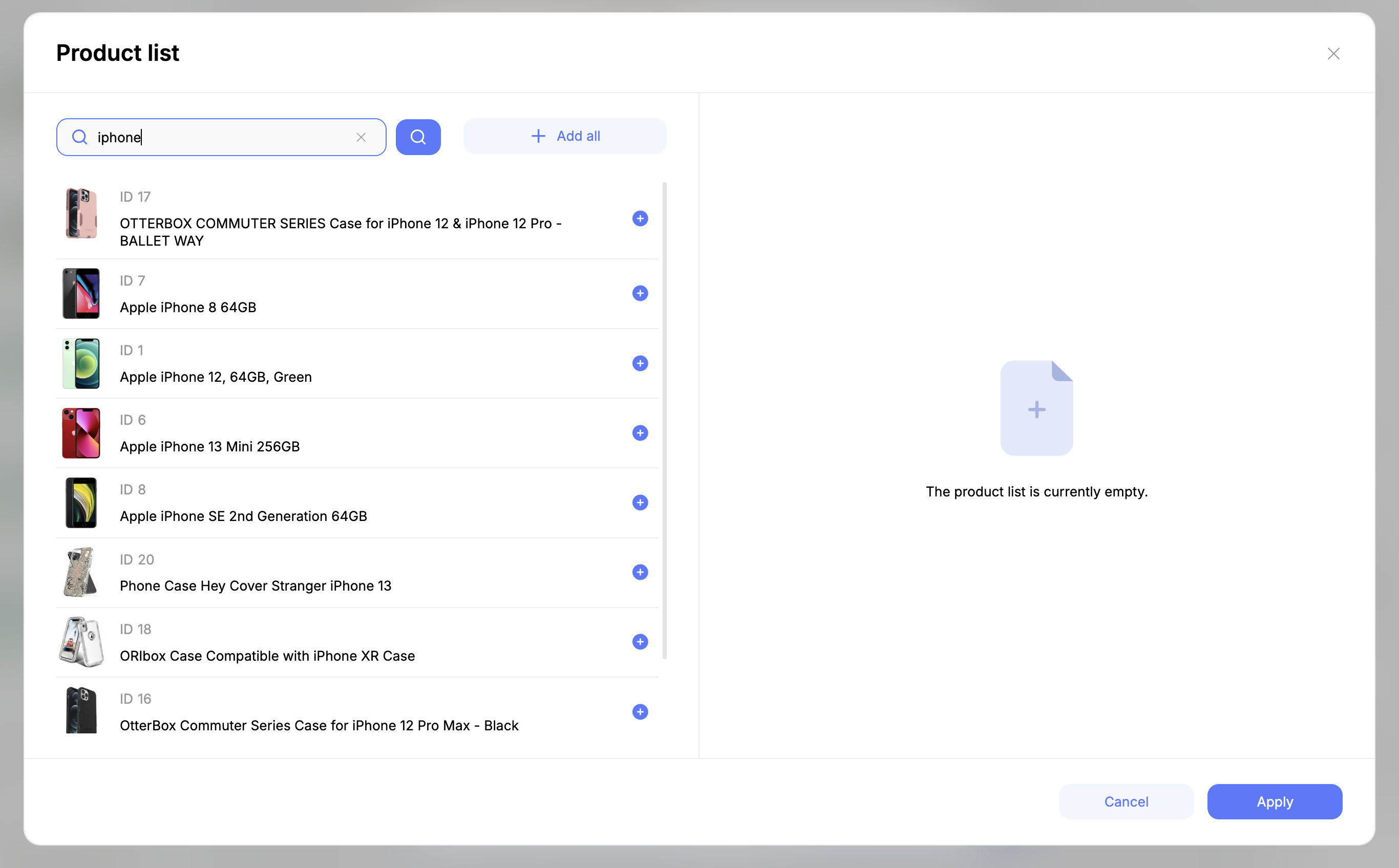
To add a product to the block, you need to click the "+" button in the left section of the product selection window. To remove a product, you need to click the "-" button in the right section of the window. The "Clear list" button removes all products added to the block. You can save the selected products by clicking the "Apply" button.
After selecting products in the central part of the product block settings window, the selected products will be listed. There you can change the order of products in the block, as well as remove unnecessary products.
Working with email styles and themes
To work with email styles, you first need to open the styles menu in the left panel of the editor:
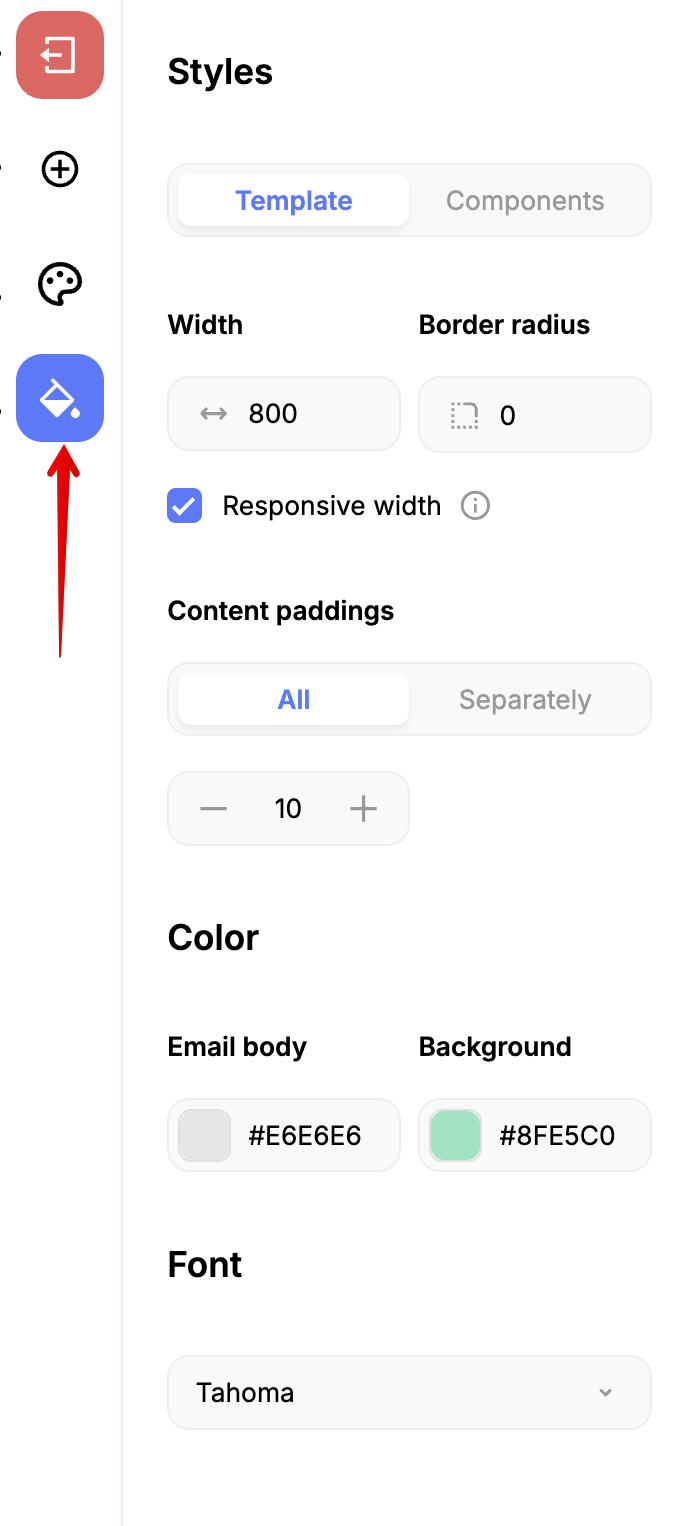
Styles can be configured for both the entire email and individual email components.
Configured styles can be saved as a theme. To do this, after configuring the styles, you need to open the themes menu in the left panel, and then click the "Save theme" button and select which theme group to save the configured styles to:
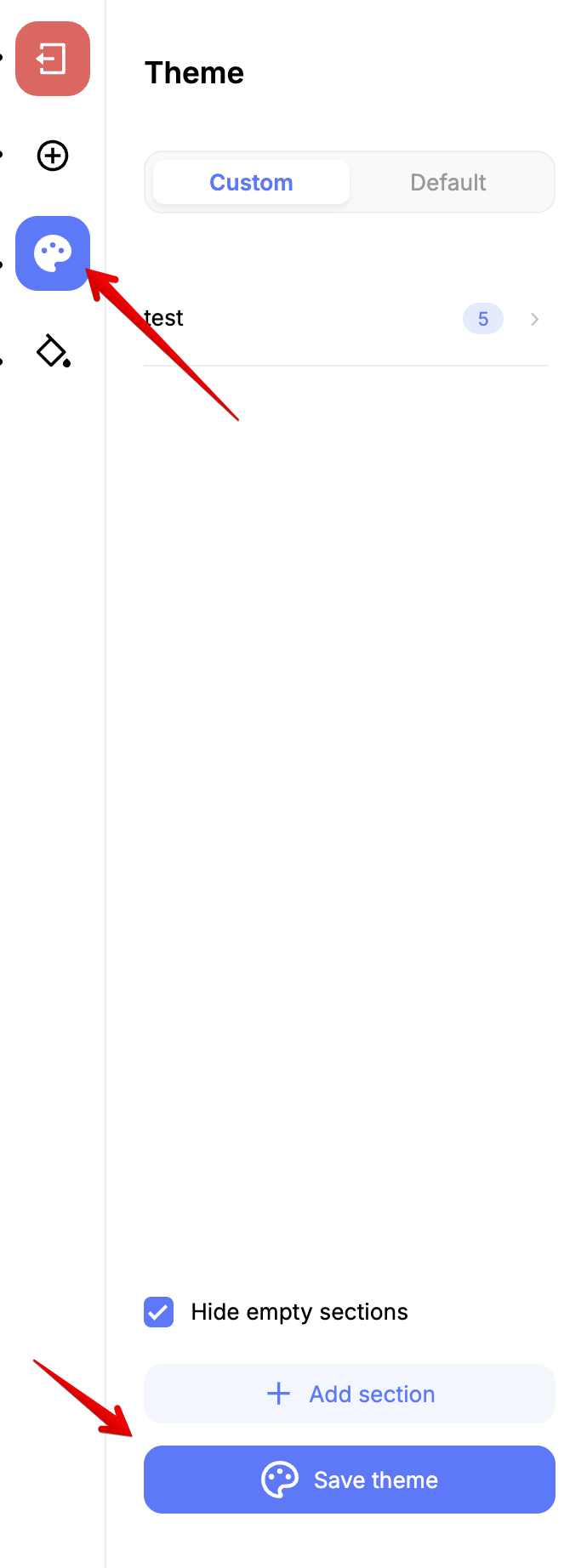
Selected themes are applied to the entire email: