Checking tracking codes
Introduction
In your personal account, you can see a page with six tracking codes.
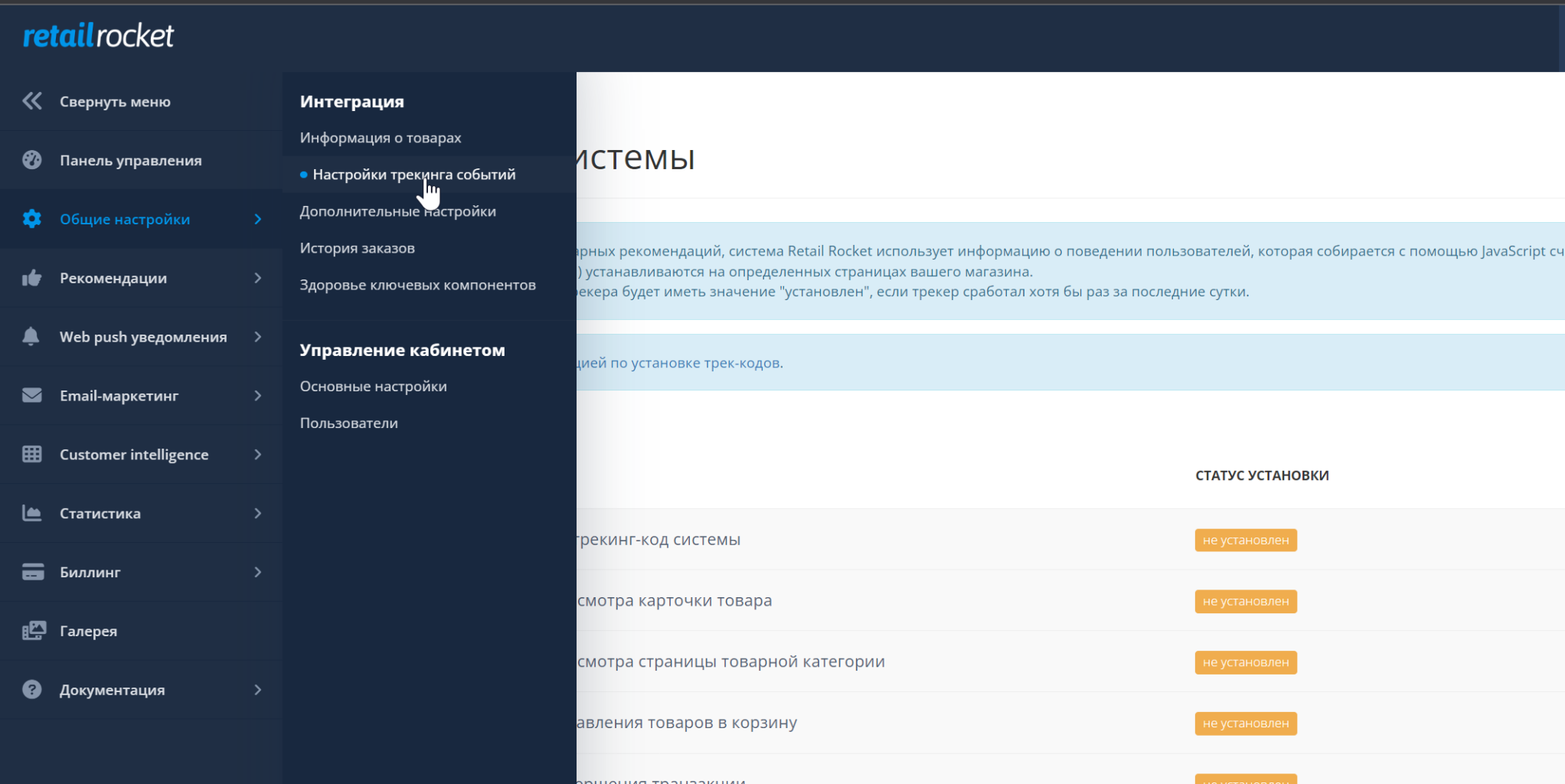
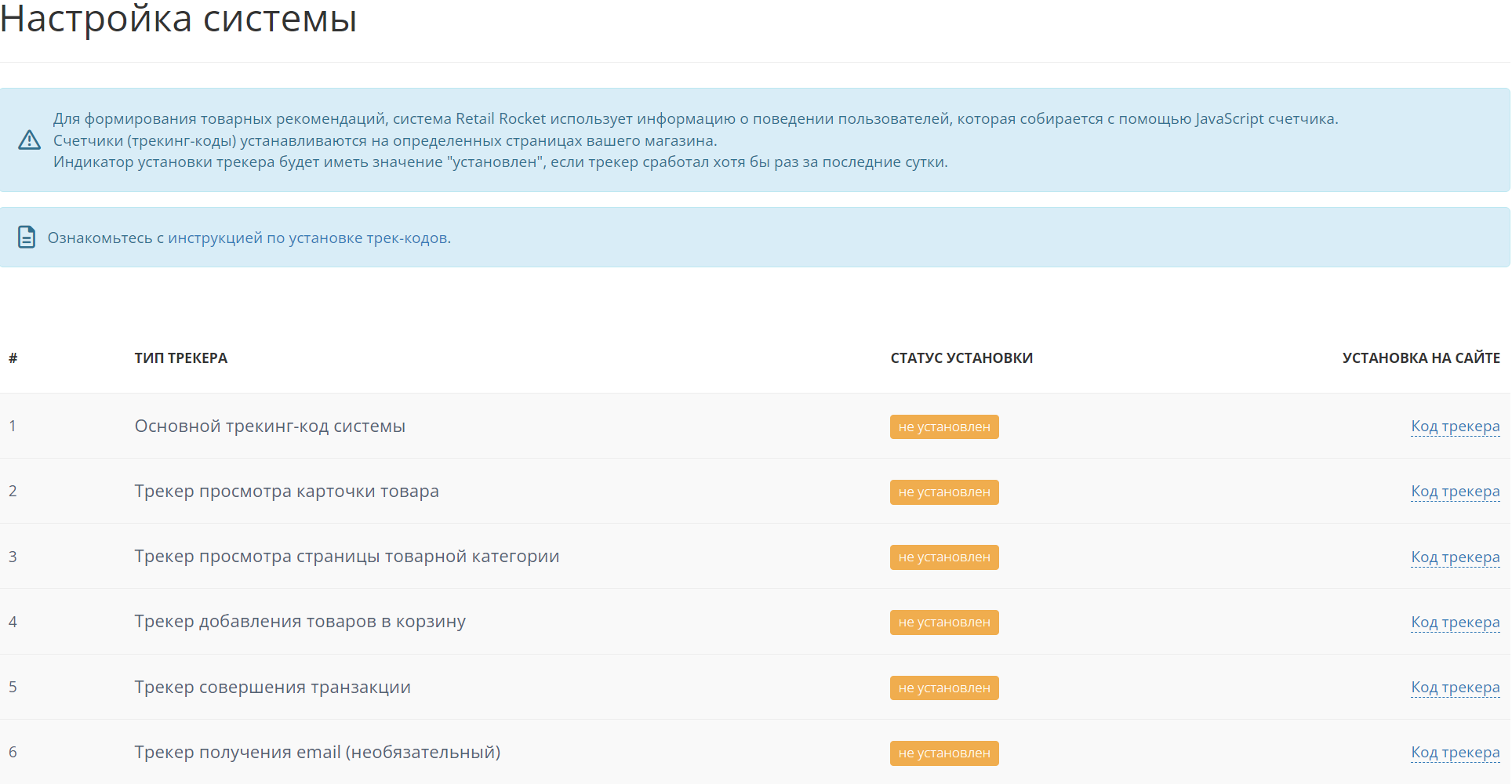
After any of the tracking codes are installed, it needs to run on the site at least once. Only after that will the installation status change from

to

Also, pay attention to the phrase:
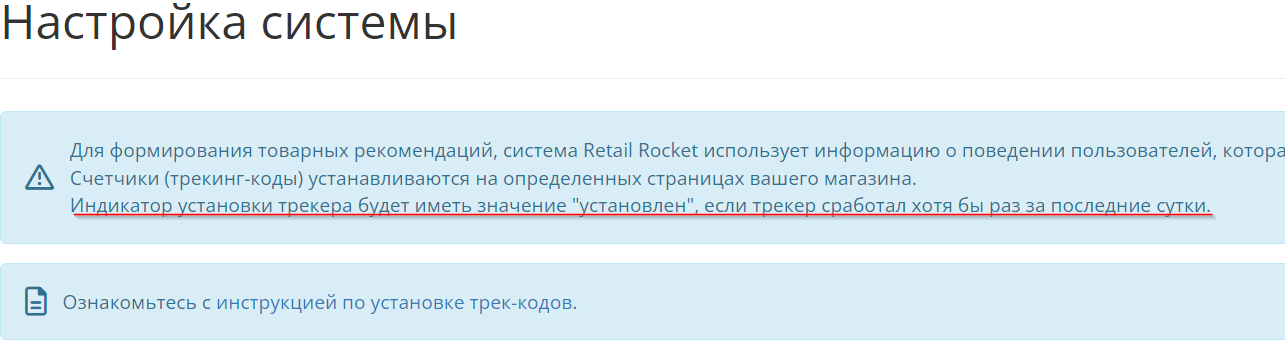
If the tracking code has not fired on the site at least once in the last 24 hours, its status will automatically change to
This does not mean that it has disappeared from your site. As soon as it fires again, its status will automatically change to
Tools for checking
To check the integration, you can use the developer console.
In Google Chrome, for example, to open it, press F12 or Ctrl+Shift+I.
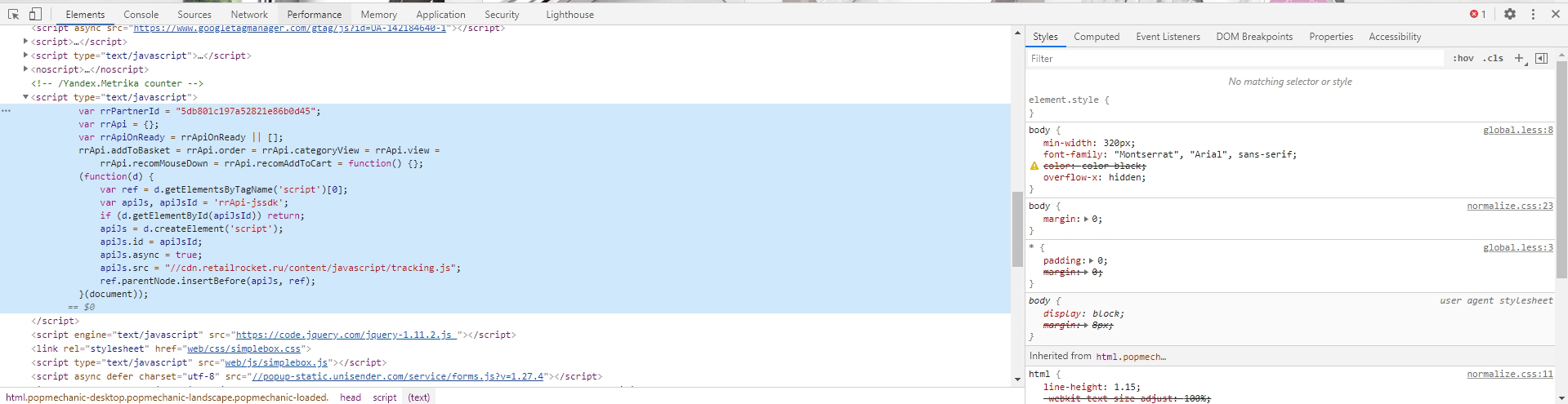
In the “Elements” tab, you can see Retail Rocket tracking codes directly in the page code, for example:
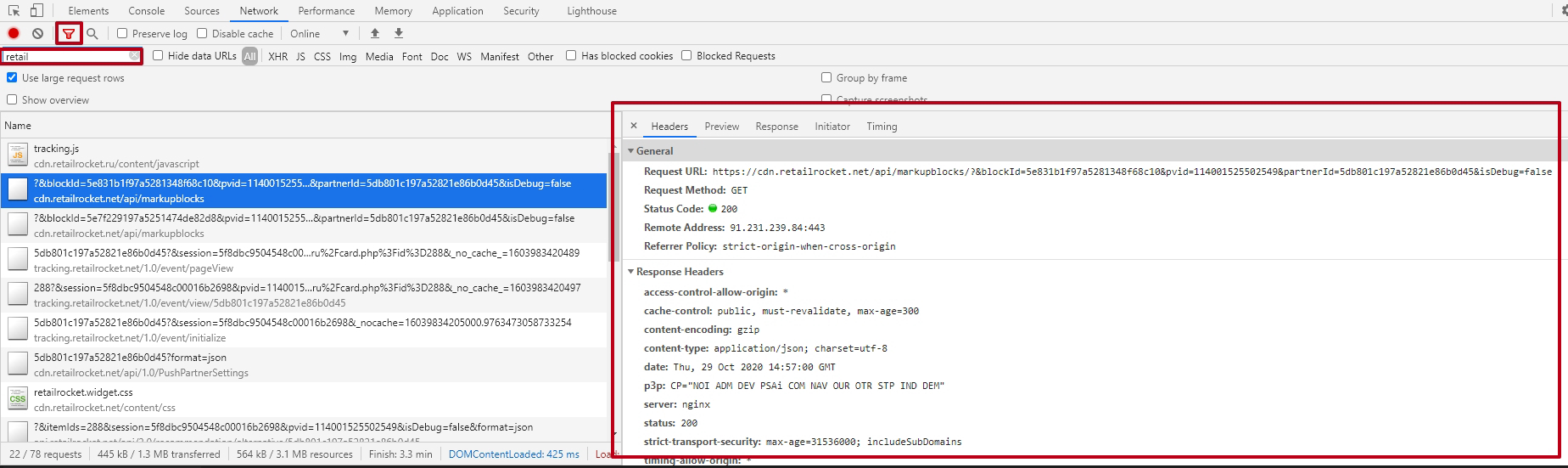
In the “Network” tab, you can track events.
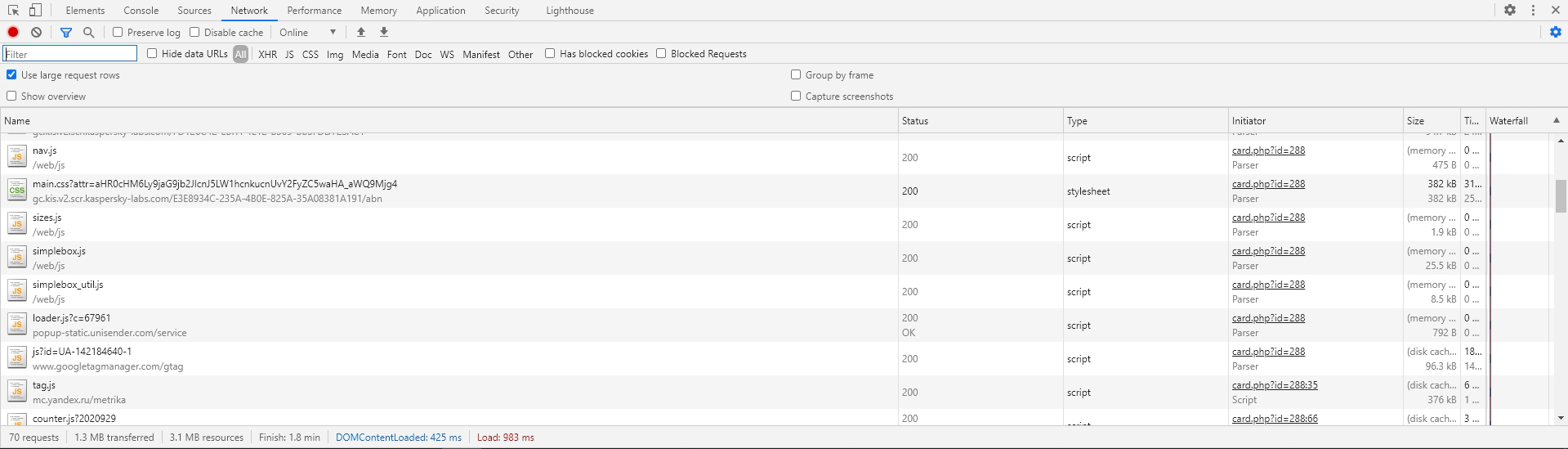
Here you can:
1 - use a filter to remove uninteresting events, for example, retail.
2 - View event details.
Main tracking code of the system
The main tracking code must be installed on all pages of the site. It should be located at the beginning of the page code (in the <head> tag or in the <body> tag before the main content of the page (products)). It is with its help that the other five tracking codes work. The main tracking code fires when the page on which it is installed is viewed.
You can check the installation of the main tracking code by opening the developer console (F12 in Google Chrome, Ctrl + Shift + I in Opera).
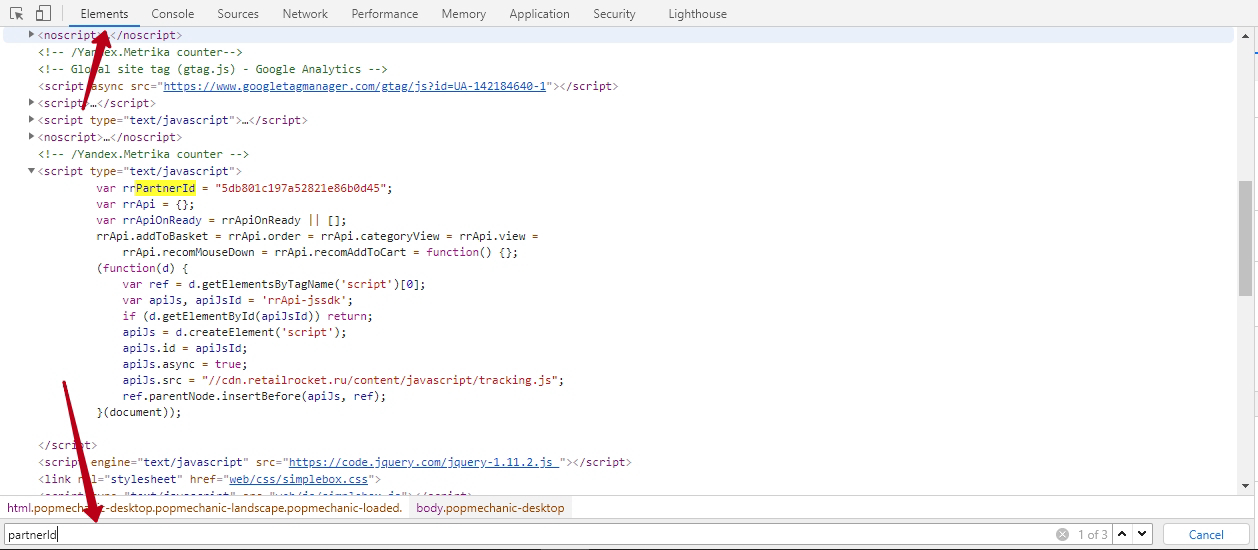
Go to the “Elements” tab, select the very beginning of the document.
Press “Ctrl + F” (search in page code). Type “rrPartnerId”. The main tracking code in the page code:
To check its functionality, go to the developer console, “Network” tab:
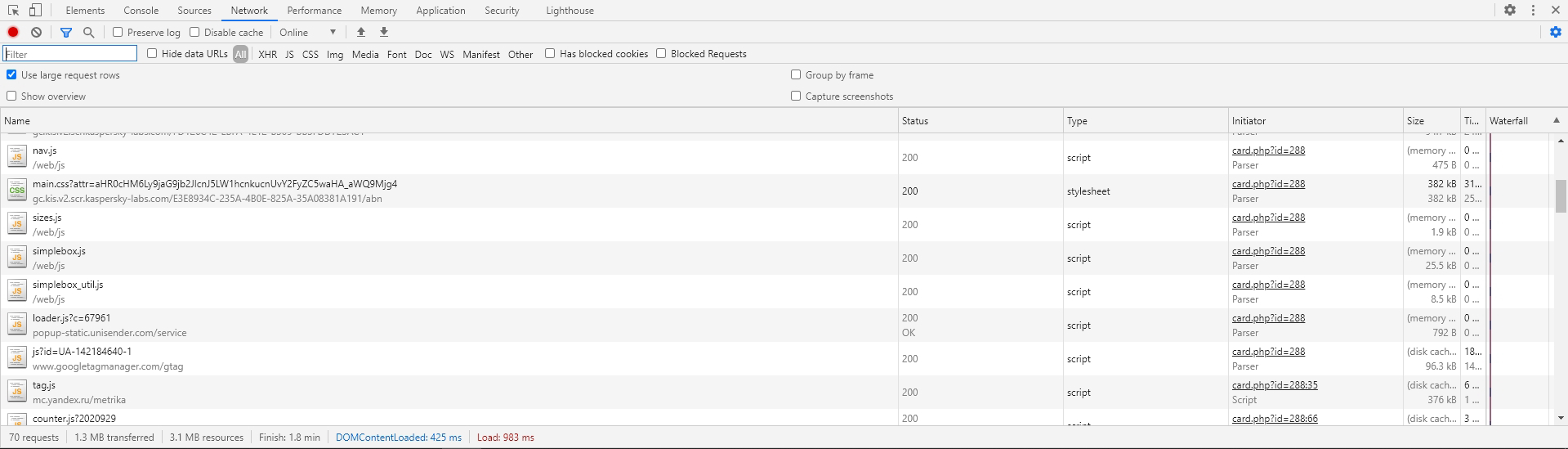
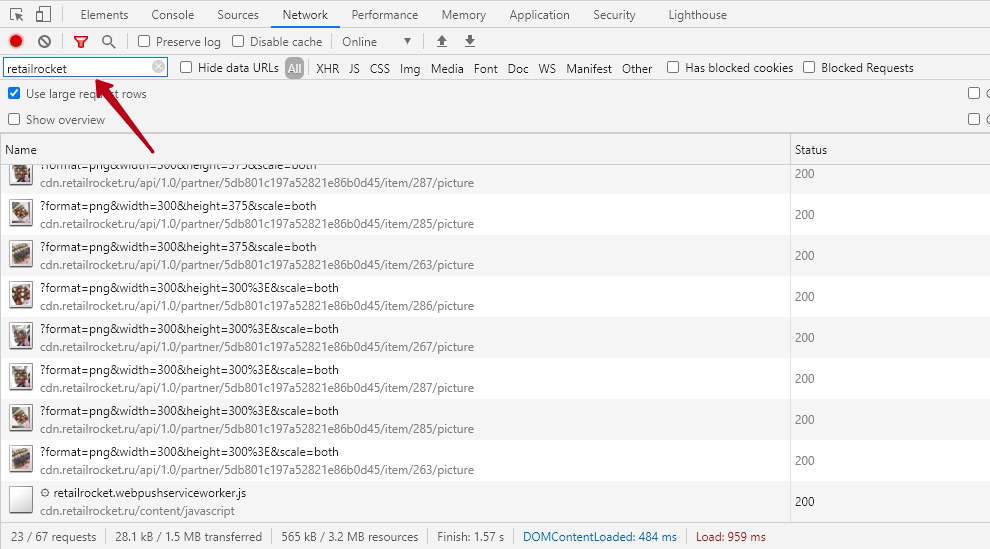
Reload the page (F5). Type “retailrocket” in the filter.
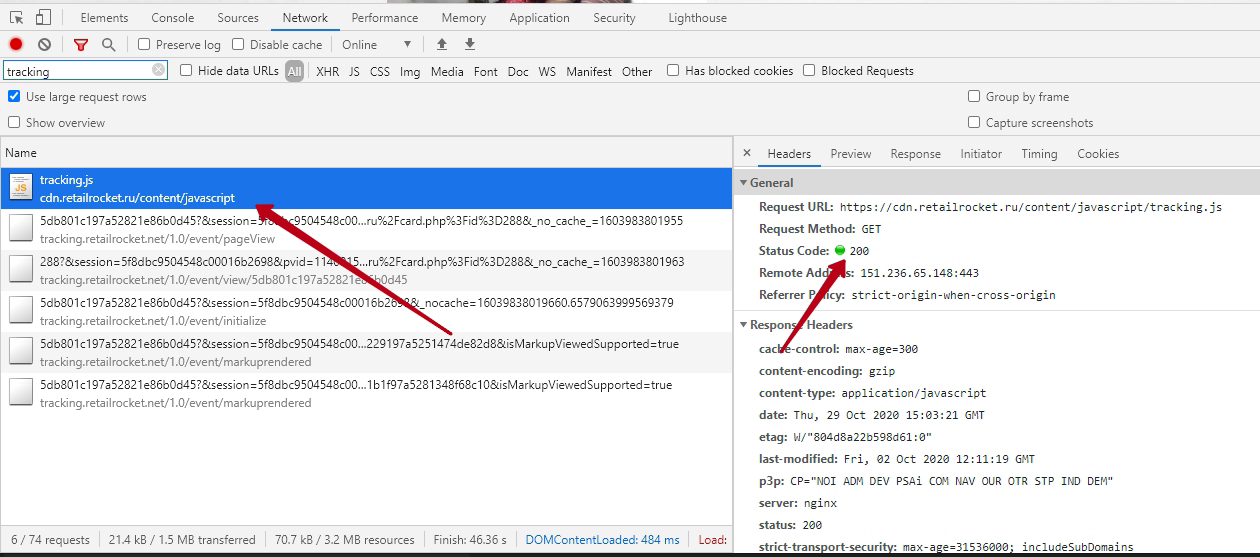
If you see the loaded file “tracking.js” with status 200, it means the Retail Rocket system has been successfully launched on your site.
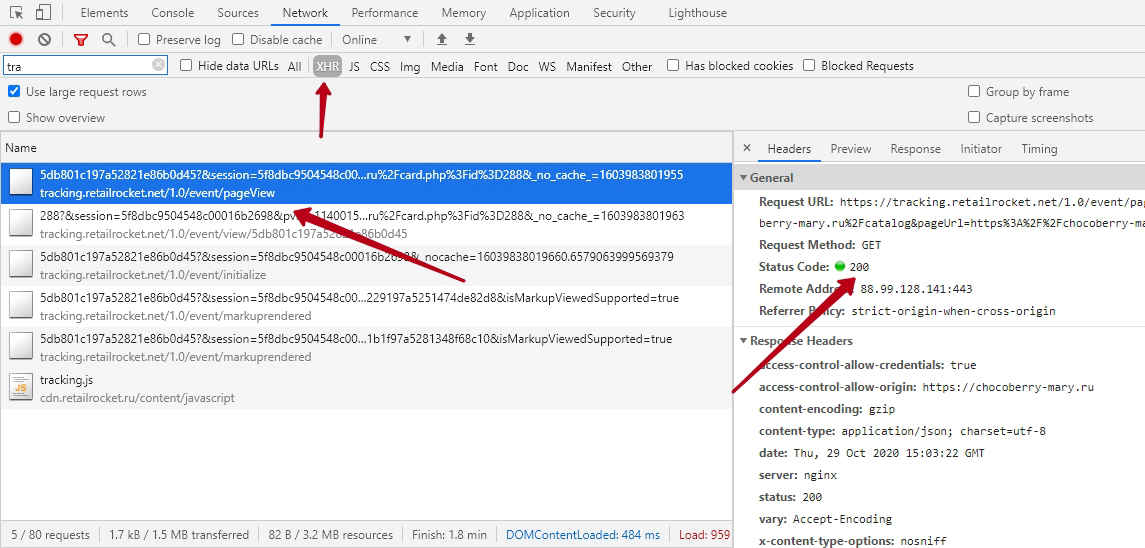
After that, select the “XHR” type. All Retail Rocket events have this type.
If, after selecting “XHR”, you see a pageView event with status 200, it means the main tracking code is installed correctly.
Product card view tracker
This tracking code is installed on typical product card pages. Note: if the site has pop-up windows for quick product viewing, the tracking code must also be installed in the templates of these windows (the checking principle is similar).
First, let's take any product from the YML file.
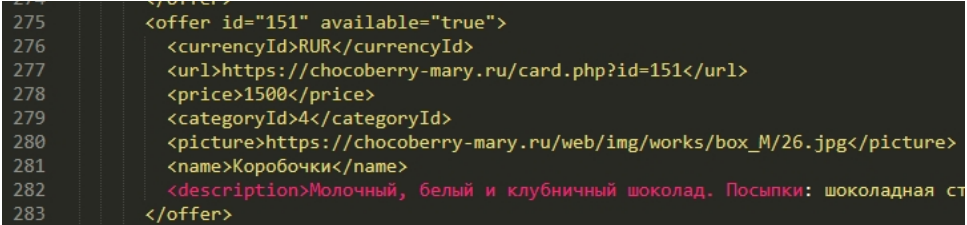
For example, a product with id = 151.
When we follow the link contained in the
To see the product card view tracker in the page code on the site, open the developer console, press Ctrl + F and type “rrApi.view”, then press Enter once.
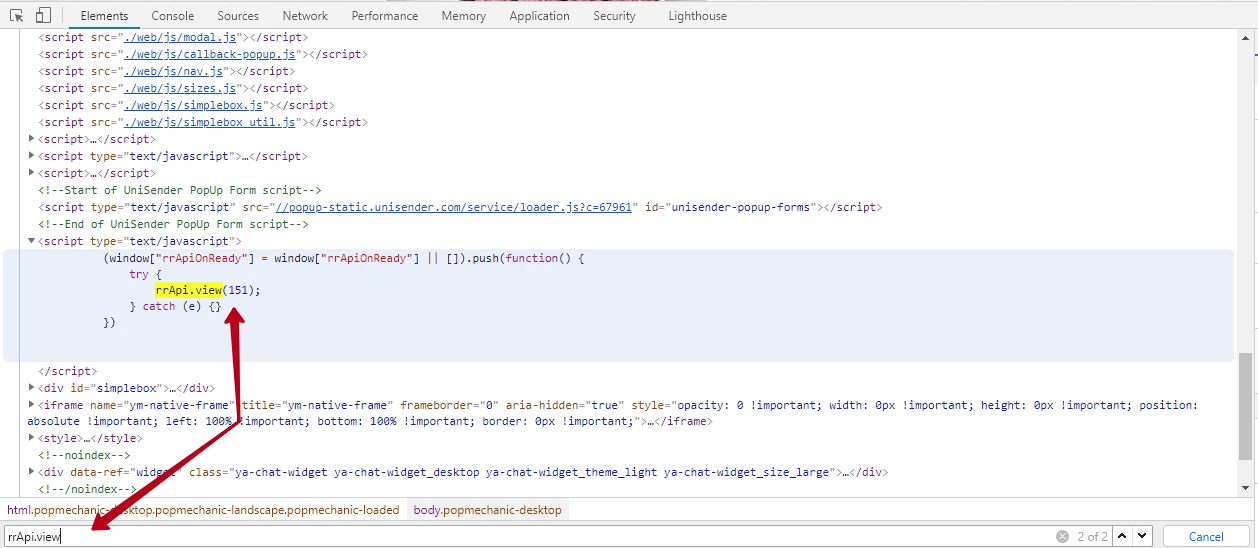
We see that the tracker is present in the page code and id 151 is passed to it.
To ensure that the tracker worked without errors, open the “Network” tab in the developer console. Type “retailrocket” in the filter.
If you see a view event with status 200, it means the product card view tracker is installed correctly.
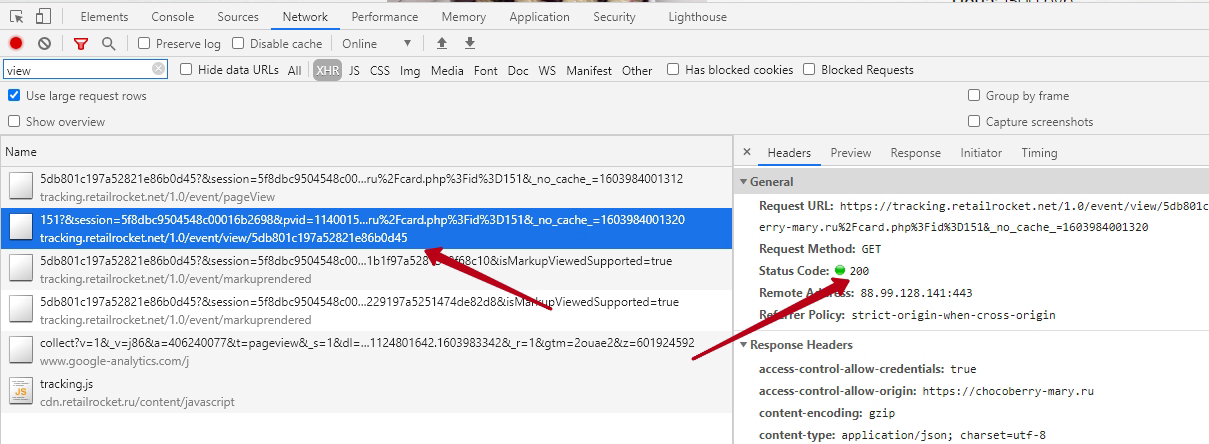
To see which id is passed to the tracker, you need to look at the beginning of the event.
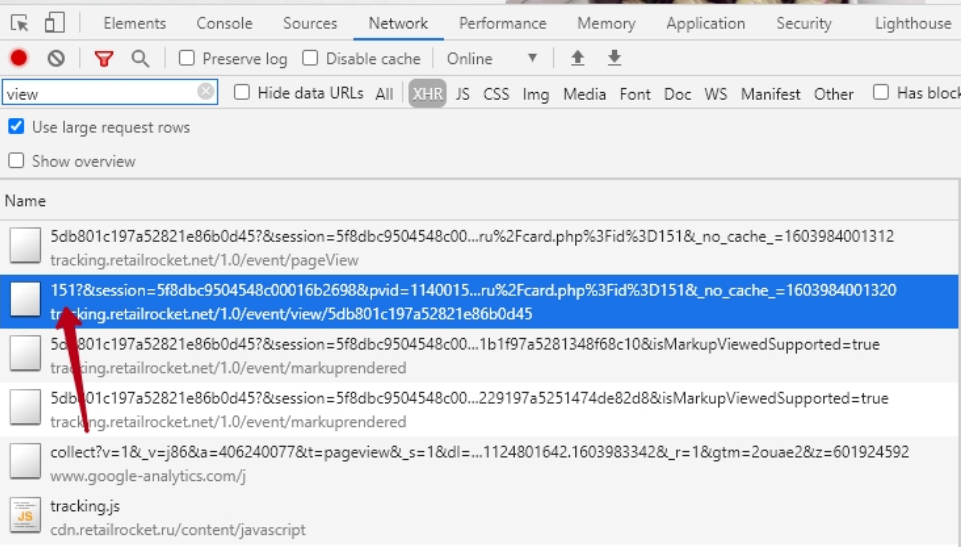
Or click on this event and pay attention to “Request URL.” The product id is located immediately after the unique partner identifier.

Product category page view tracker
These tracking codes are installed on product category pages.
Let's go to any product category page. To see the product category view tracker in the page code on the site, open the developer console, press Ctrl + F and type “rrApi.categoryView”, then press Enter once.
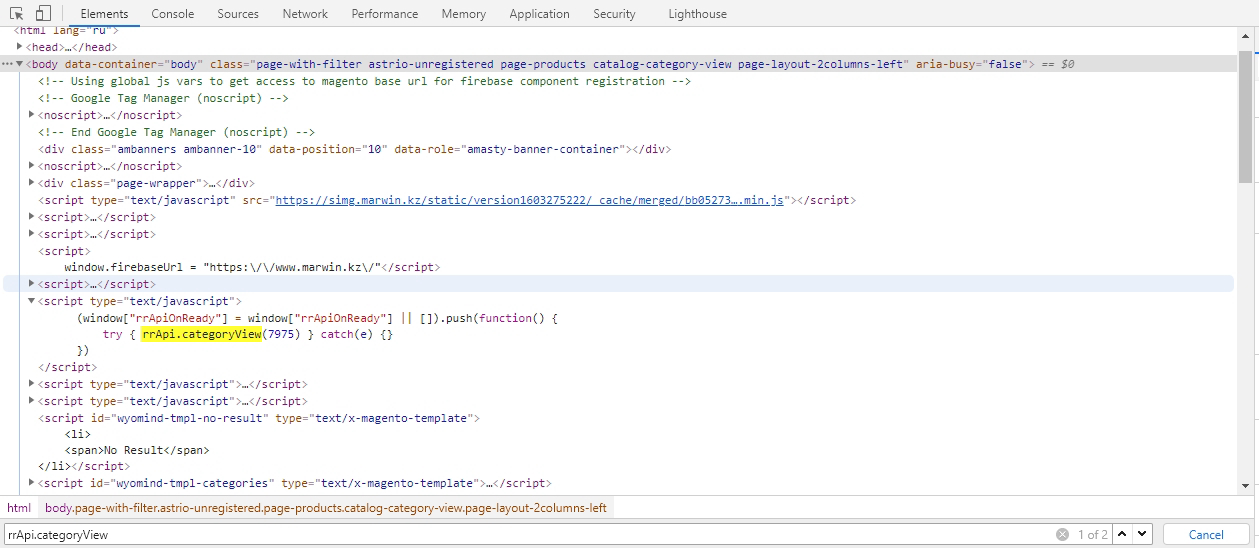
We see that the tracker is present in the page code and id 7975 is passed to it.
To ensure that the tracker worked, open the “Network” tab in the developer console. Type “retailrocket.” in the filter.
If you see a categoryView event with status 200, it means the product category view tracker is installed correctly.
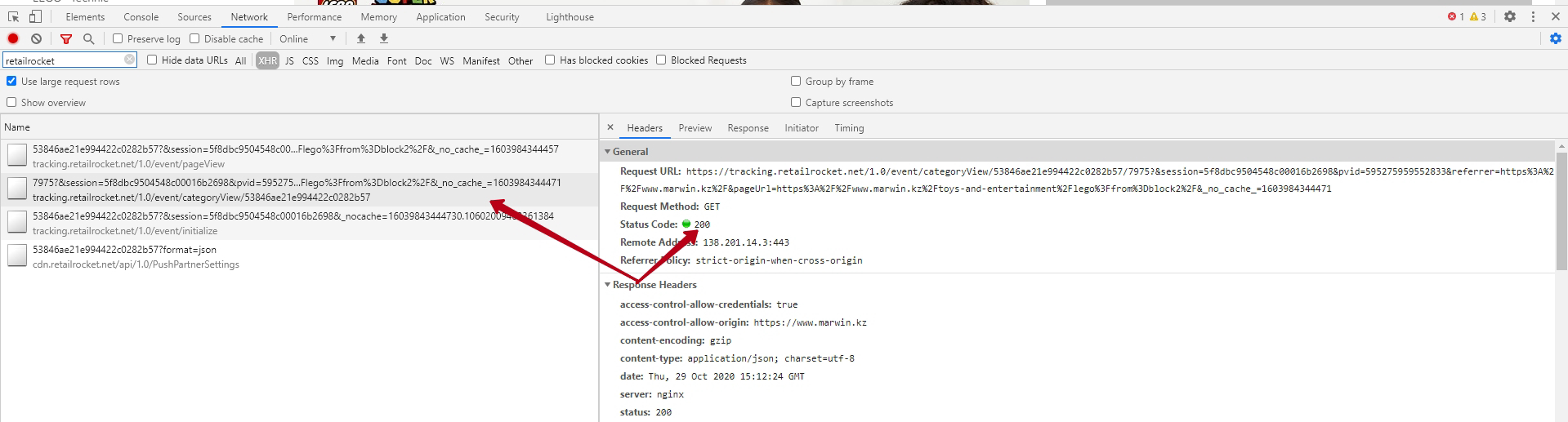
To see which id is passed to the tracker, you need to look at the beginning of the event.
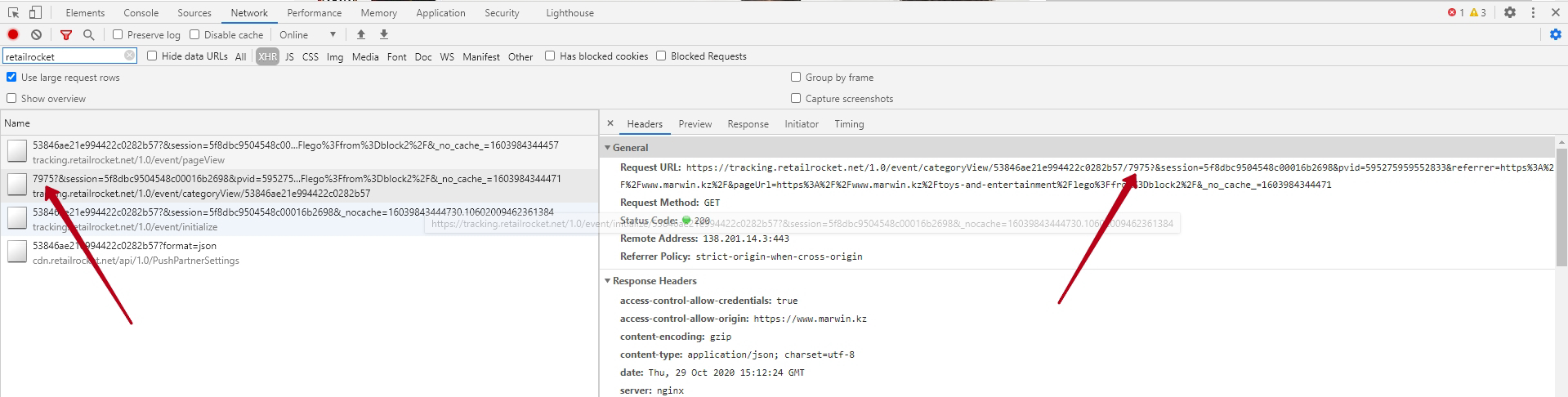
Or click on this event and pay attention to “Request URL.” The product id is located immediately after the unique partner identifier.
Add to cart tracker
These tracking codes must be installed on all buttons that add a product to the cart. If the site provides a “Buy in 1 click” or “Quick order” button, the tracking code must additionally be installed on these buttons (the checking principle is similar).
Go to the card page of any product. To see the add to cart tracker in the page code on the site, open the developer console, press Ctrl + F and type “rrApi.addToBasket”, then press Enter once.
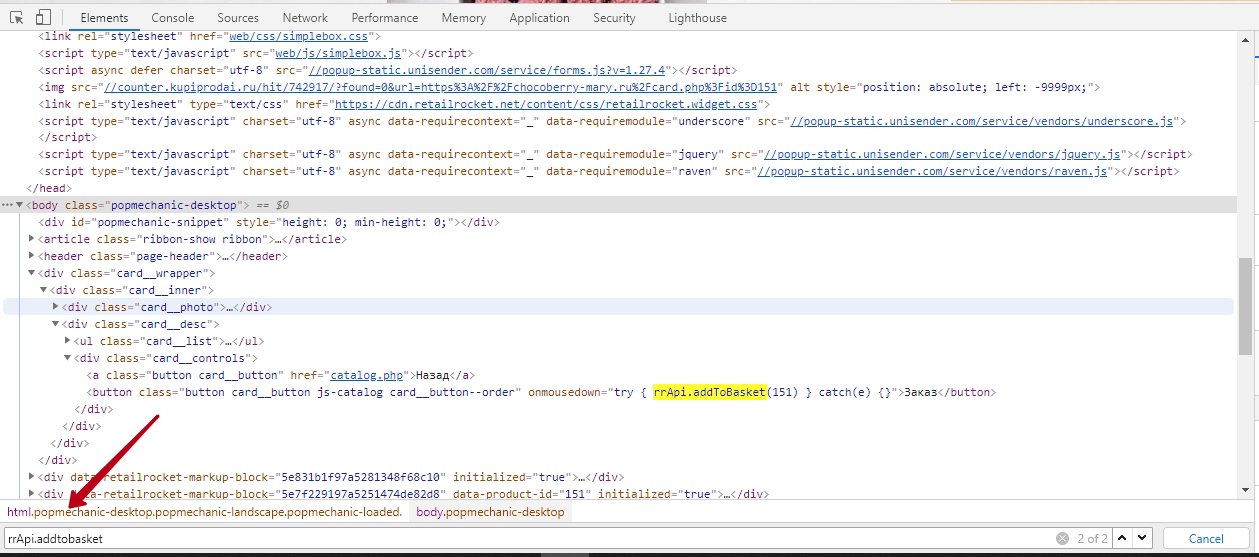
We see that the tracker is present in the page code and id 151 is passed to it.
To ensure that the tracker worked, open the “Network” tab in the developer console. Type “retailrocket.” in the filter. Click the button that adds the product to the cart. If you see that an addToBasket event with status 200 has appeared, it means the add to cart tracker is installed correctly.
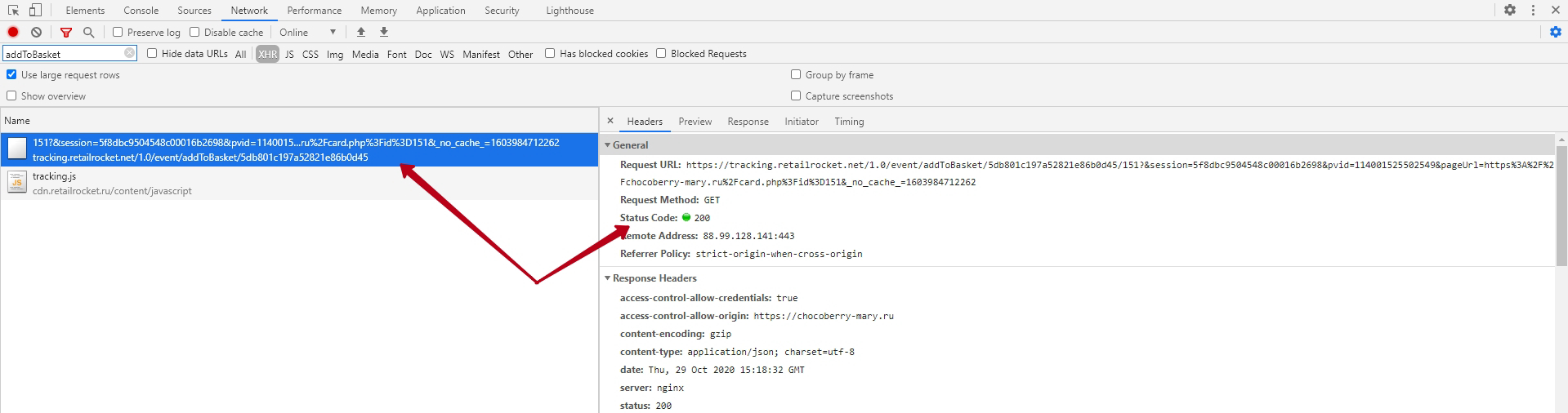
To see which id is passed to the tracker, you need to look at the beginning of the event.
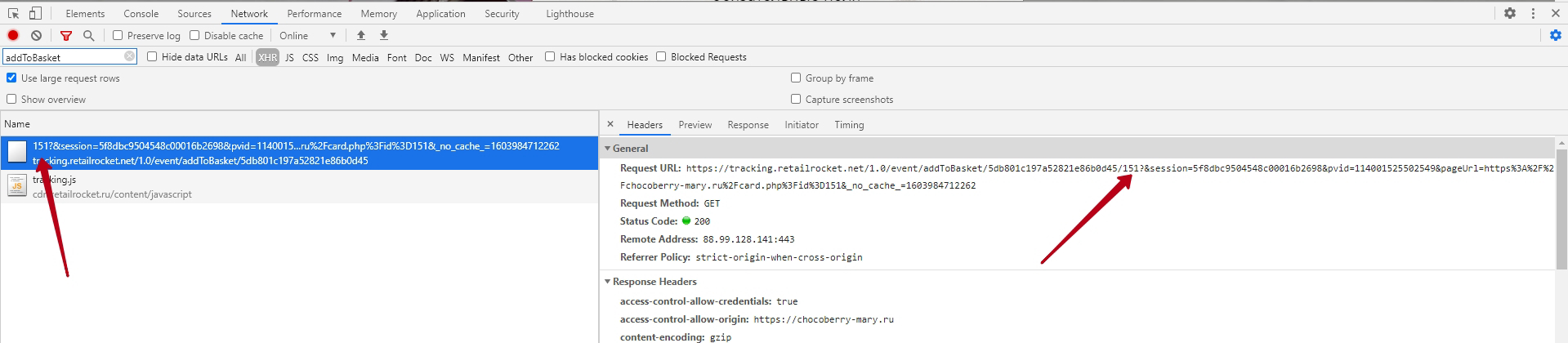
Or click on this event and pay attention to “Request URL.” The product id is located immediately after the unique partner identifier.
Transaction tracker
This tracking code is installed on the order completion page. If the site provides “Buy in 1 click” or “Quick order” forms, the tracking code must additionally be installed in the templates of these forms (the checking principle is similar).
IMPORTANT! The transaction tracker must pass the order id and an array of products in the cart at the time of the order. For each item, three fields are passed: id, quantity in the order (qnt), and price per 1 unit of this product.
Two products were added to the cart. The first in quantity 1 and with price 220, the second in quantity 2 and with price 130.
To see the tracker in the page code, open the developer console before placing the order (this is necessary so that the tracking code event appears in the “Network” tab). Before sending the order, check the “Preserve log” checkbox in the “Network” tab. This will prevent data about events from being erased after navigating from the current page to the next.

Place the order without closing the developer console.
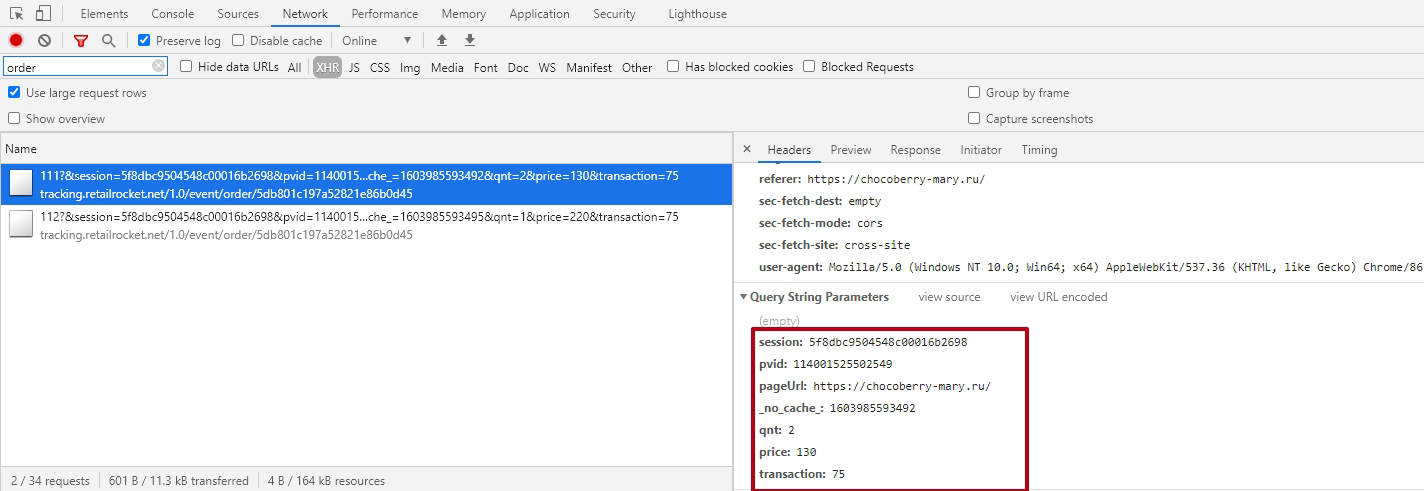
To ensure that the tracker worked without errors, go to the “Network” tab. Type “retailrocket.” in the filter. You should see one order event for each product item, and they should have status 200. This means that the transaction tracker is installed correctly. In this case, we see two events, as there were two product items in the order.

To see the id of the product for which the order was placed, you need to look at the beginning of the events or click on each event, paying attention to the “Request URL”. The product id can be seen immediately after the unique partner identifier.

To view other order information, click on the event. Scroll down the headers. In “Query String Parameters” we see the quantity of goods (qnt), the price per unit of goods (price), and the transaction id (transaction).
Email capture tracker
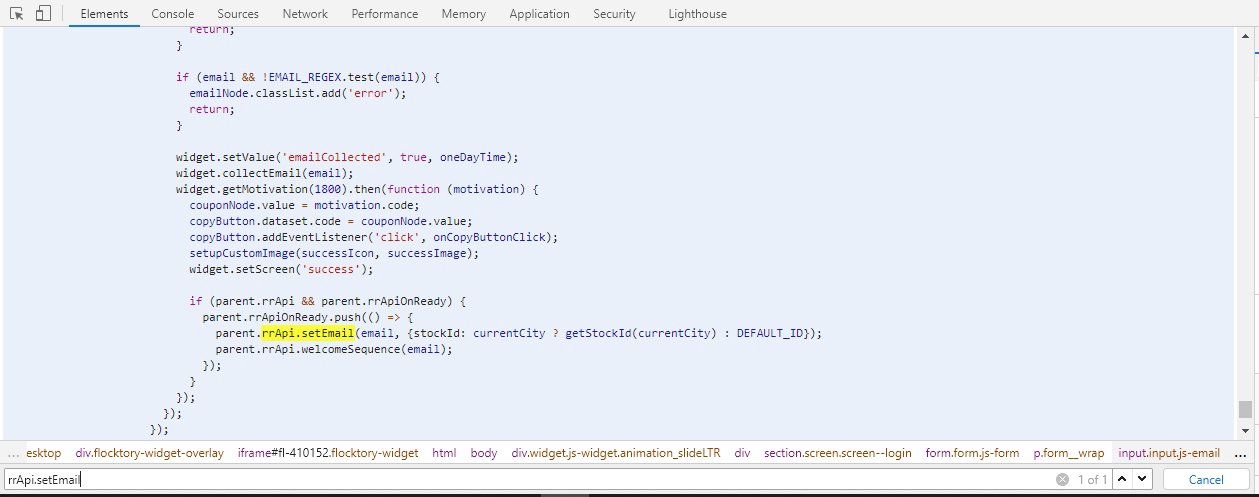
The tracking code transmits the user's email, and the system links the current user session with this email. With this tracking code, the Retail Rocket platform sends trigger emails to users. This tracking code should be installed in all fields where the user can leave their email address and confirm their desire to receive Retail Rocket emails. Go to the page where the user can leave their email address. To see the email capture tracker in the page code on the site, open the developer console, press Ctrl + F and type “rrApi.setEmail”.
To ensure that the tracker works correctly, go to the “Network” tab, enter the email address in the required field. If the tracker is installed on the onblur event, simply click outside the window. If the tracker is installed on form submission, submit the form (you need to check the “Preserve log” checkbox).
If you see an setEmail event with status 200, then the tracker worked correctly.
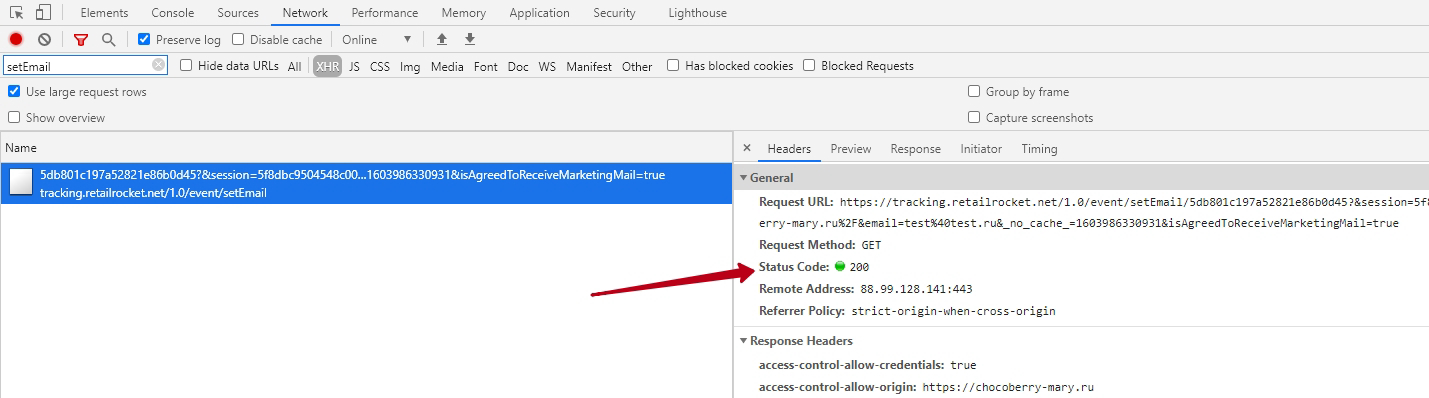
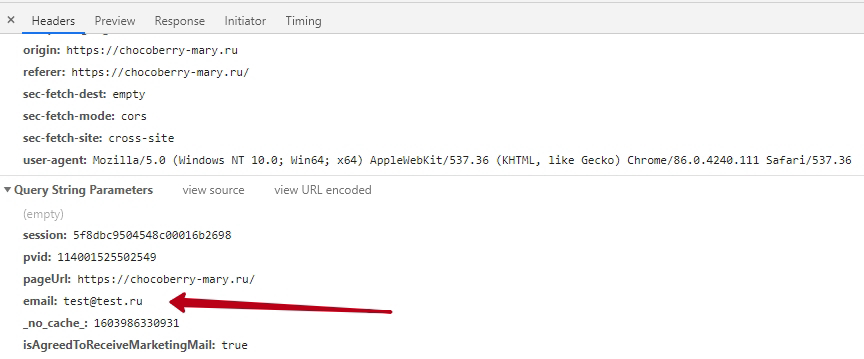
To see which email address was passed to the tracker, click on the event. Scroll to the very bottom. We see the transmitted email address.
Conclusion
If all trackers receive correct values and a status of 200 is returned, then the integration is complete, and there will be no errors when working with the site in the Retail Rocket system.
Please note that the code of different sites is not similar to each other due to many technical features. Tracking codes can be installed not only in the main page code (Elements tab) but also in additionally connected files. In this instruction, searching for code in the Elements tab is intended to familiarize with "classic" integration.
Tracking codes may be absent from the main page code (Elements tab), so checking is always performed in the Network tab.